Messages & Component Builder
TicketForge features a dual-engine message visual builder. You can deliver messages using traditional Discord Embeds (V1) or build flexible layouts using modern Components (V2).
1. Choosing Your Message Format
Section titled “1. Choosing Your Message Format”At the top of the canvas editor, you can switch between the two formatting engines:
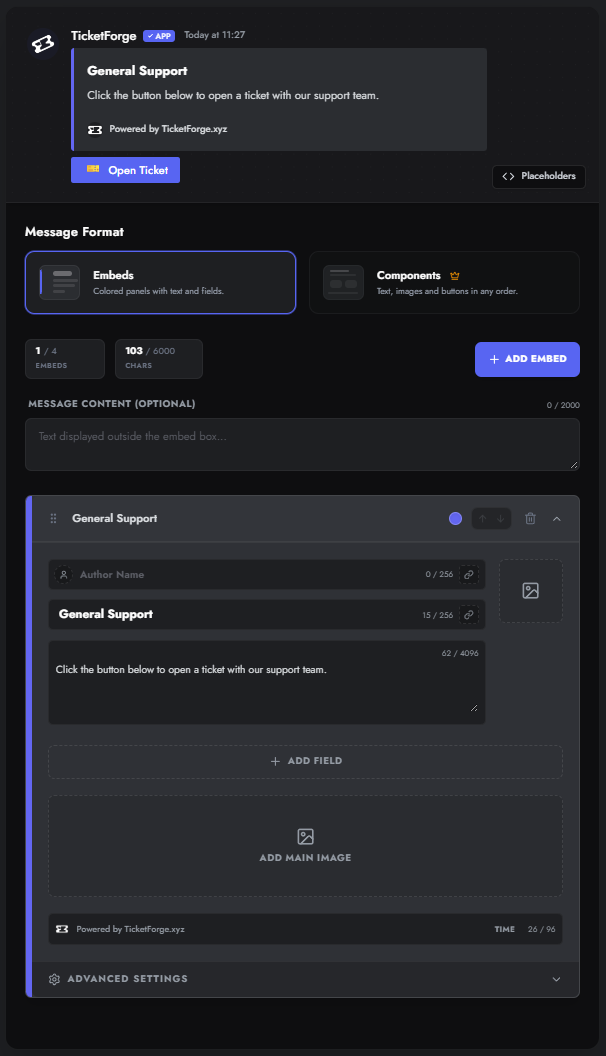
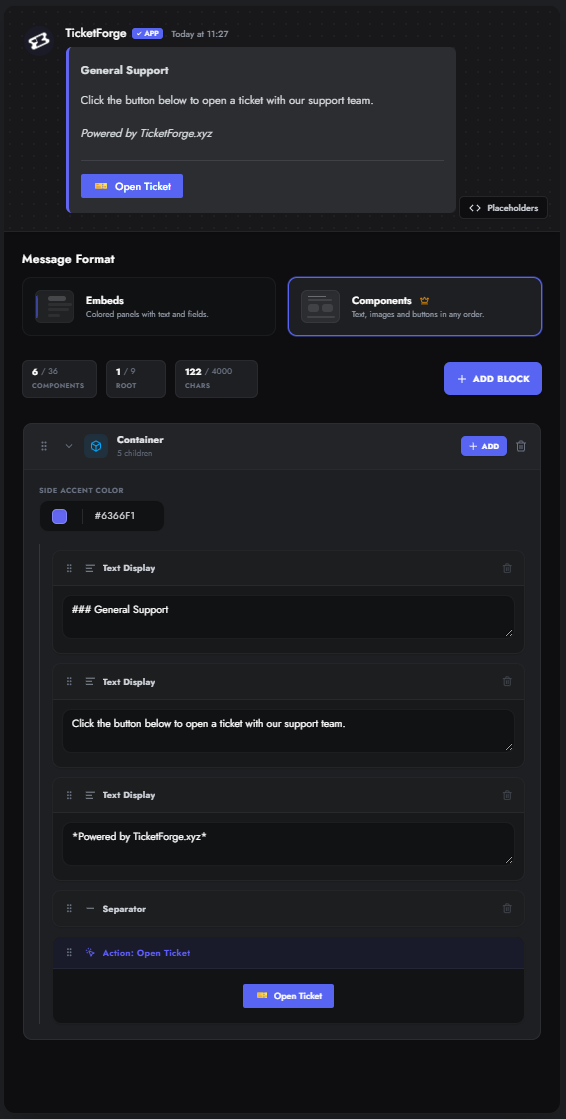
| Feature | Embeds (V1) | Components (V2) |
|---|---|---|
| Layout Style | Rigid embed cards with side color bars | Freeform stack: text, images, containers, and buttons in any order |
| Max Capacity | Up to 4 embeds per message | Up to 9 root blocks & 36 total nested components |
| Character Limit | 6,000 characters total across embeds | 4,000 characters total |
| Interactive Buttons | Attached only at the bottom of the message | Can be placed inside containers, sections, or button groups |
| Transcript Support | Required (V1 only) | ❌ Unavailable for transcript logs |
2. Components (V2) Engine
Section titled “2. Components (V2) Engine”(Premium Feature)
Components V2 allows you to construct Discord messages using modular UI blocks that can be nested, styled, and dragged into any order.
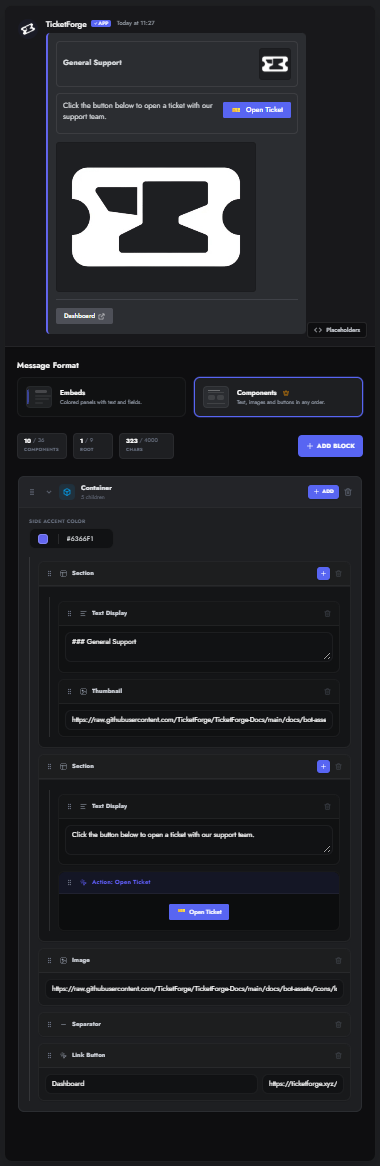
Component Block Types
Section titled “Component Block Types”| Block Type | Description | Allowed Placement |
|---|---|---|
| Container | Groups elements inside a panel with an optional left accent color bar. | Root level only |
| Section | Split-column layout: content on the left, an accessory (image or button) on the right. | Root or inside a Container |
| Text Display | Markdown block. Supports **bold**, *italics*, ### headers, code blocks, and links. |
Root, Container, or Section |
| Image | Full-width media banner (max display height: 300px). | Root or Container |
| Thumbnail | Compact square graphic (56×56px / 64×64px) with rounded corners. | Root, Container, or Section accessory |
| Separator | Visual horizontal divider line between components. | Root, Container, or Section |
| Link Button | Clickable URL button pointing to an external website or dynamic {placeholder}. |
Root, Container, or Section accessory |
| Action Button | System-managed button executing ticket/application logic (e.g., Open Ticket, Claim). | Managed automatically |
| Select Menu | Interactive dropdown anchor populated at runtime (e.g., department escalation). | Root or inside a Container |
Structural Limits & Nesting Rules
Section titled “Structural Limits & Nesting Rules”To ensure messages render reliably within Discord’s gateway constraints, the editor enforces these rules:
- Hierarchy Limits:
- Root Blocks: Maximum of 9 top-level blocks.
- Total Components: Maximum of 36 total components (counting all nested children).
- Text Budget: Maximum of 4,000 characters across all text fields, labels, and URLs.
- Container Isolation:
- A Container cannot be placed inside another Container.
- Section Restrictions:
- A Section can hold text and an accessory (image or button). It cannot contain another Section or a Container.
- Mobile Responsive Stacking:
- If a Section contains a button accessory, the live bot and preview will automatically stack the button below the text on mobile devices and narrow viewports.
Smart Interaction & Action Safeguards
Section titled “Smart Interaction & Action Safeguards”When working with action buttons (such as Close Ticket, Claim, or Escalate):
- Automatic Action Syncing: When you change your panel layout style (e.g., from Single Button to Select Dropdown or Multi-Panel), the builder automatically synchronizes required action buttons and select anchors into your V2 layout.
- Orphan Protection: If you delete a Container that held action buttons, the builder salvages the action buttons and moves them into another container so you never break ticket functionality by accident.
- One-Click Embed $\rightarrow$ V2 Conversion: Switching an existing Embed (V1) message to Components (V2) automatically converts your titles, fields, descriptions, and thumbnails into styled V2 text blocks and containers.
3. Classic Embeds (V1) Engine
Section titled “3. Classic Embeds (V1) Engine”If you prefer classic Discord embeds, the V1 engine provides full control over embed styling and field layouts.
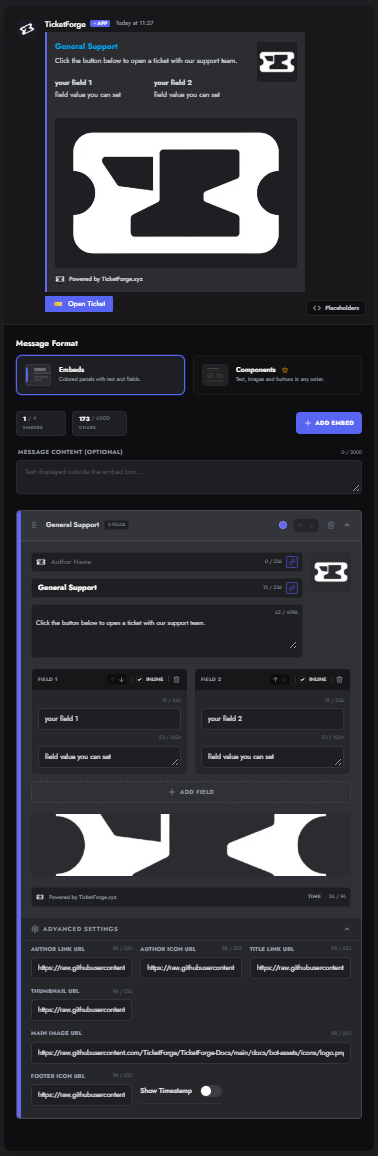
Embed Structure & Limits
Section titled “Embed Structure & Limits”- Multi-Embed Support: Add up to 10 embeds per message.
- Character Budget: Up to 6,000 characters total across all embeds in a single message.
- Color Customization: Set custom hex colors per embed using the native color picker.
Embed Component Hierarchy
Section titled “Embed Component Hierarchy”- Author: Small icon, author name, and clickable author link URL.
- Title: Large bold header with optional hyperlink URL.
- Description: Main text body with Markdown support (max 4,096 characters).
- Fields: Key-value pairs displayed in a stacked or multi-column grid:
- Inline Fields: Displays fields side-by-side (2 or 3 per row depending on screen width).
- Standard Fields: Spans the full width of the embed card.
- Media:
- Thumbnail: Small image placed in the top-right corner.
- Main Image: Large full-width banner placed below the fields.
- Footer: Small bottom text, optional footer icon, and dynamic timestamp toggle.
4. Reordering & Drag-and-Drop
Section titled “4. Reordering & Drag-and-Drop”Both the V1 Embed builder and the V2 Component builder feature a custom drag-and-drop system:
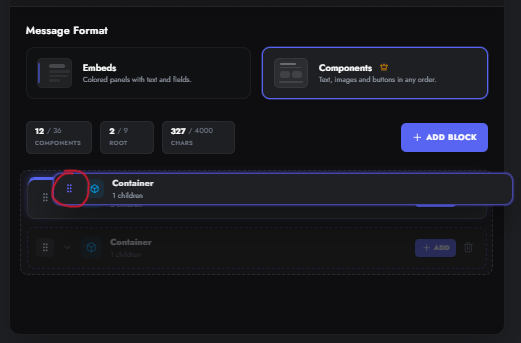
- Pointer Grab: Grab the grip icon (
⋮⋮) on any embed card or component block. - Drop Highlighting:
- Blue top/bottom bar: Drops the item before or after the targeted block.
- Blue inner box: Drops the item inside a container or section.
- Arrow Controls (V1): Use the Up and Down arrow buttons on embed headers to move embeds without dragging.
5. Dynamic Placeholders & Image Resolvers
Section titled “5. Dynamic Placeholders & Image Resolvers”You can insert dynamic placeholders anywhere in your text, links, or image URLs:
- User Data:
{user_mention},{user_name},{user_id},{user_avatar} - Server Data:
{server.name},{server.id},{server.icon},{server.banner} - Ticket Data:
{ticket},{ticket.name},{ticket.id},{claim.user}
6. Available Message Lifecycle Triggers
Section titled “6. Available Message Lifecycle Triggers”Customize messages for every phase of the ticket workflow under Panel Editor > Messages:
| Trigger Name | Format Options | Delivery Location | When It Fires |
|---|---|---|---|
| Panel Message | V1 Embed or V2 Components | Public Channel | Displayed in your support channel; contains the initial ticket creation trigger. |
| Welcome Message | V1 Embed or V2 Components | Ticket Channel | First message sent inside a newly created ticket channel. |
| Ticket Controls | V1 Embed or V2 Components | Ticket Channel | Houses the active management buttons (Close, Claim, Escalate). |
| Claimed / Unclaimed | V1 Embed or V2 Components | Ticket Channel | Posted when an agent takes or releases ownership of a ticket. |
| Close Confirmation | V1 Embed or V2 Components | Ticket Channel | Prompts the user with “Are you sure?” when two-step close is enabled. |
| Closed / Reopened | V1 Embed or V2 Components | Ticket Channel | System notices posted when a ticket is archived or reopened. |
| Delete Warning | V1 Embed or V2 Components | Ticket Channel | Final 5-second countdown alert before channel deletion. |
| Transcript Log | V1 Embed Only | Log Channel | Posted in your private transcript channel with the attached HTML archive. |
| DM: Created / Closed | V1 Embed or V2 Components | User DMs | Direct messages sent to the ticket creator upon creation or closure. |