Role Automation & Triggers
Stop manually updating Discord roles every time an application is processed. TicketForge can handle role assignments, edge cases, and staff reminders automatically.
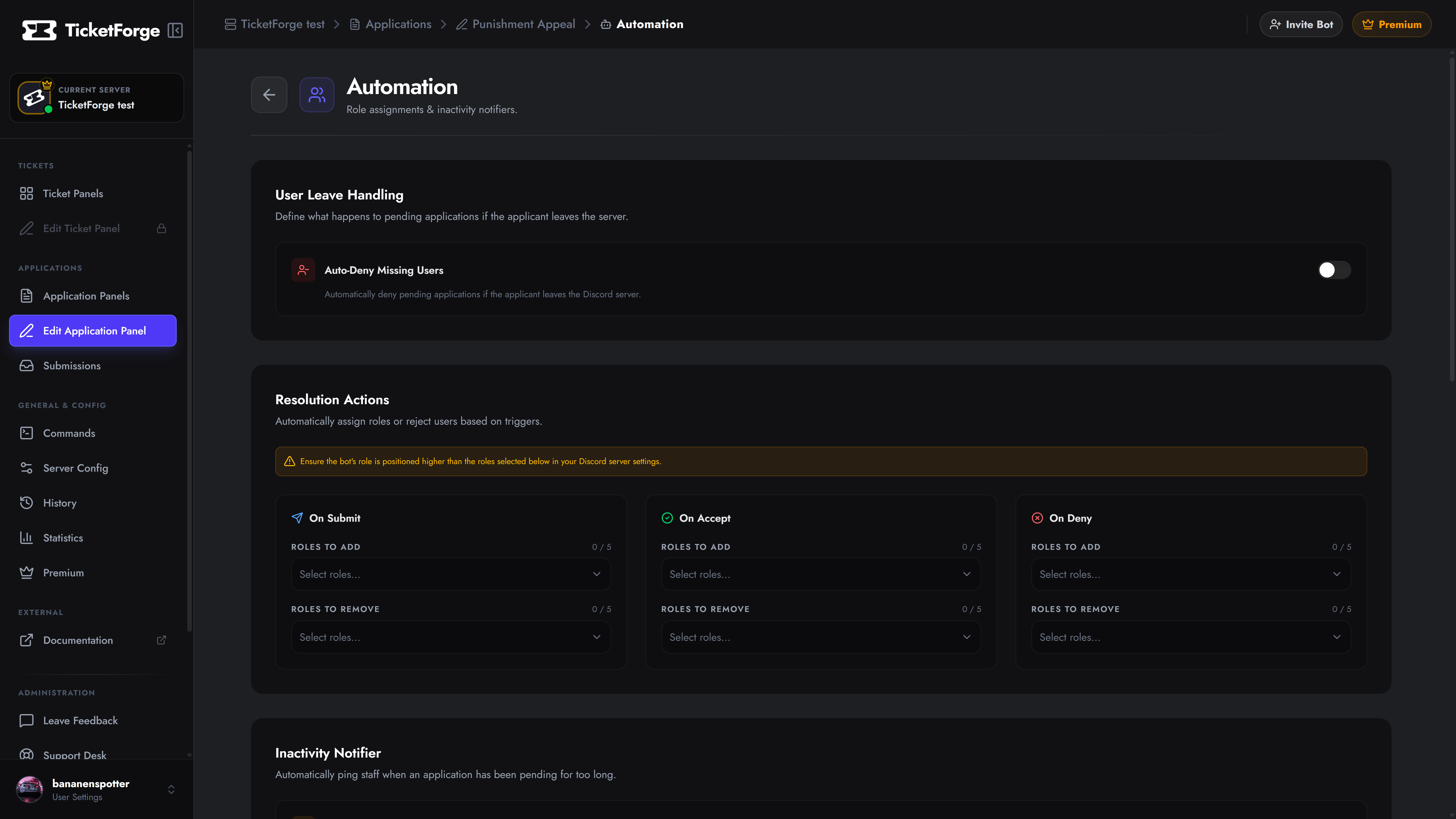
Navigate to Edit Application > Automation to configure these settings.
1. Resolution Actions
Section titled “1. Resolution Actions”You can instruct the bot to add or remove specific Discord roles based on the exact status of the application.
- On Submit: Executes the moment a user finishes the form (e.g., adding an “Applicant” role so they know their form went through).
- On Accept: Executes when a staff member approves the application (e.g., adding the “Trial Mod” role and removing the “Applicant” role).
- On Deny: Safely revert or remove roles if the user is rejected.
2. Auto-Deny Missing Users (Premium)
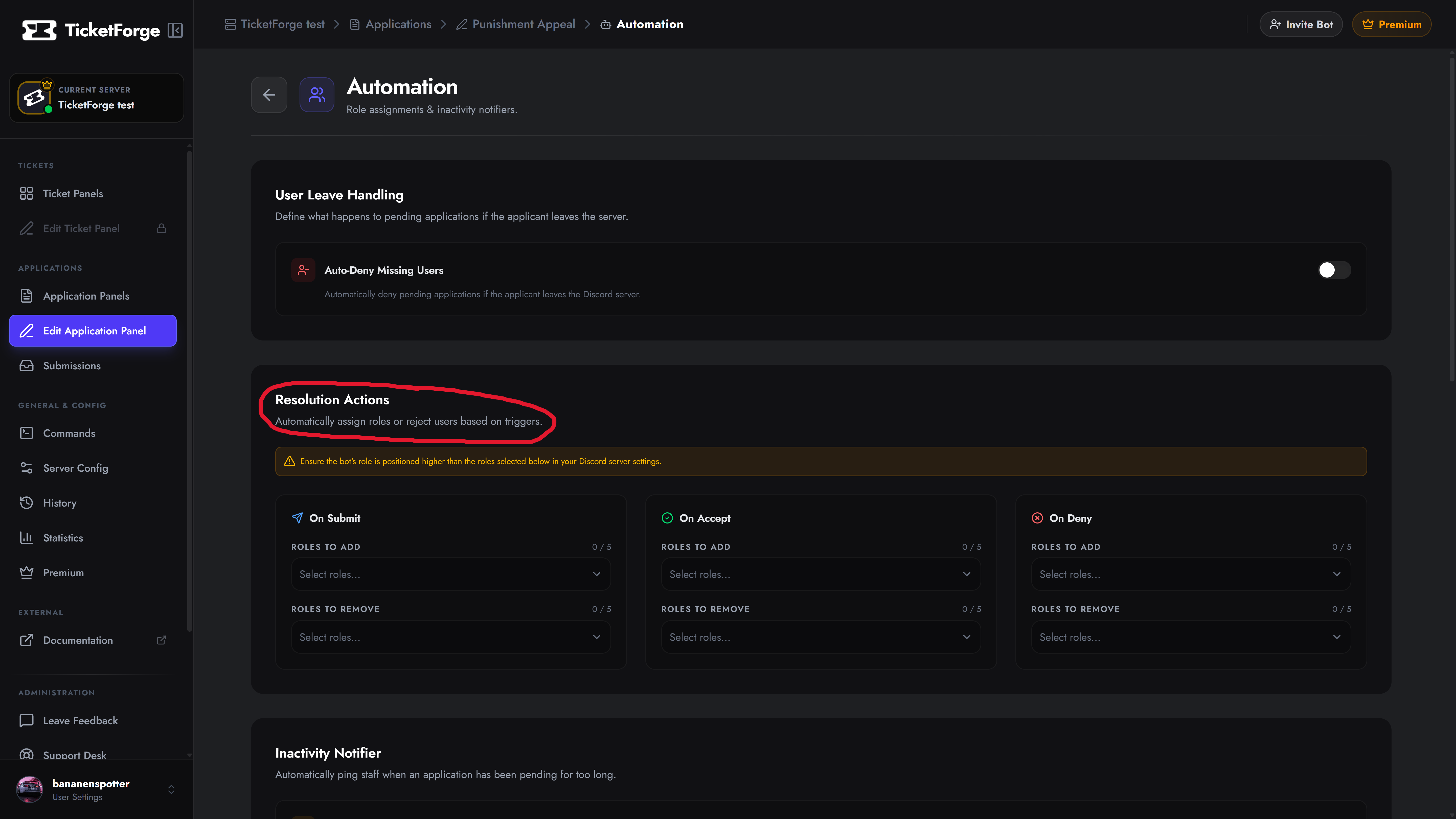
Section titled “2. Auto-Deny Missing Users (Premium)”Sometimes users apply for a position and then leave the server before your staff has a chance to review their submission.
If Auto-Deny Missing Users is enabled, TicketForge will automatically detect if the applicant is no longer in the Discord server. It will instantly mark their pending application as “Denied” and log it, keeping your staff queue clean from ghost applications.
3. Inactivity Notifier (Premium)
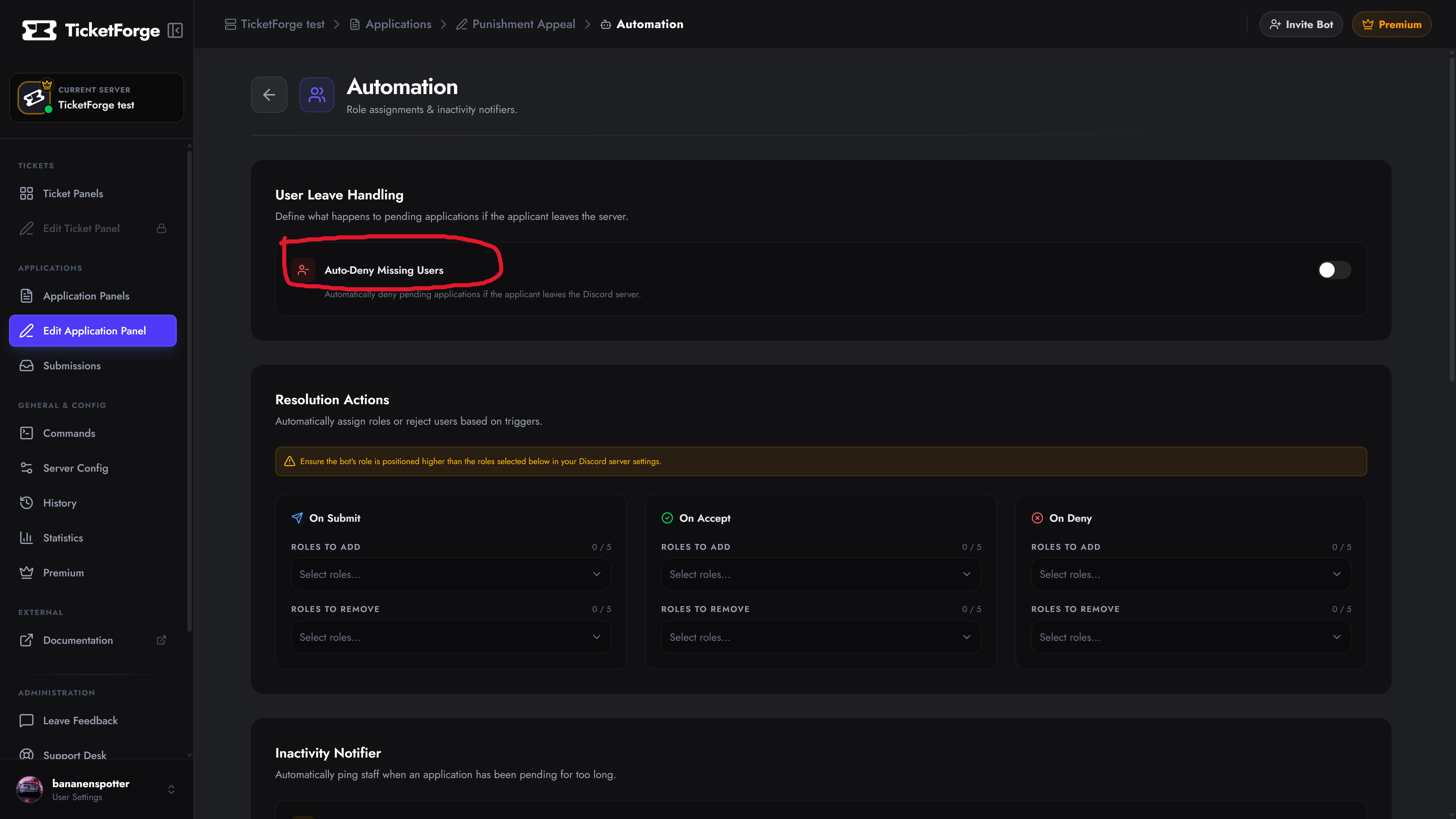
Section titled “3. Inactivity Notifier (Premium)”Never let an application slip through the cracks. The Inactivity Notifier will automatically ping your staff if an application sits in the “Pending” state for too long.
Configuration
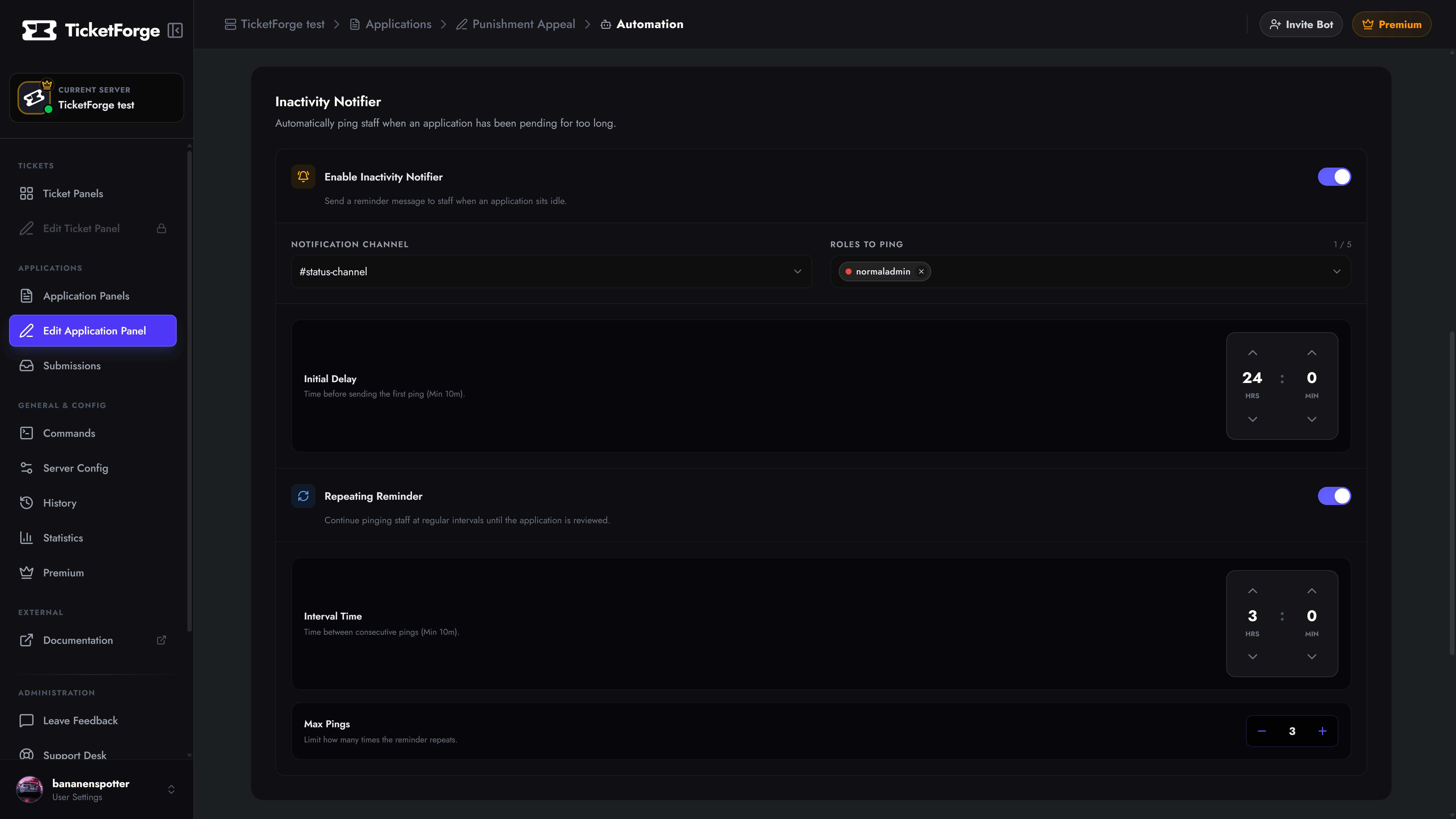
Section titled “Configuration”- Notification Channel: The text channel where the reminder ping should be sent (usually a private staff channel).
- Roles to Ping: Select your Management or Reviewer roles.
- Initial Delay: The amount of time the application must sit idle before the first ping is sent (e.g., 24 hours).
Repeating Reminders
Section titled “Repeating Reminders”If a single ping isn’t enough to get your staff’s attention, you can enable Repeating Reminders.
- Interval Time: Continue to ping staff every X hours.
- Max Pings: Limit how many times the reminder repeats (e.g., stop pinging after 3 reminders) to prevent endless spam if the team is genuinely busy.