
Audit Logging
Keep a strict, tamper-proof paper trail of your applicants and staff actions. Instead of digging through Discord’s default audit logs, TicketForge can route specific application lifecycle events to a dedicated channel.
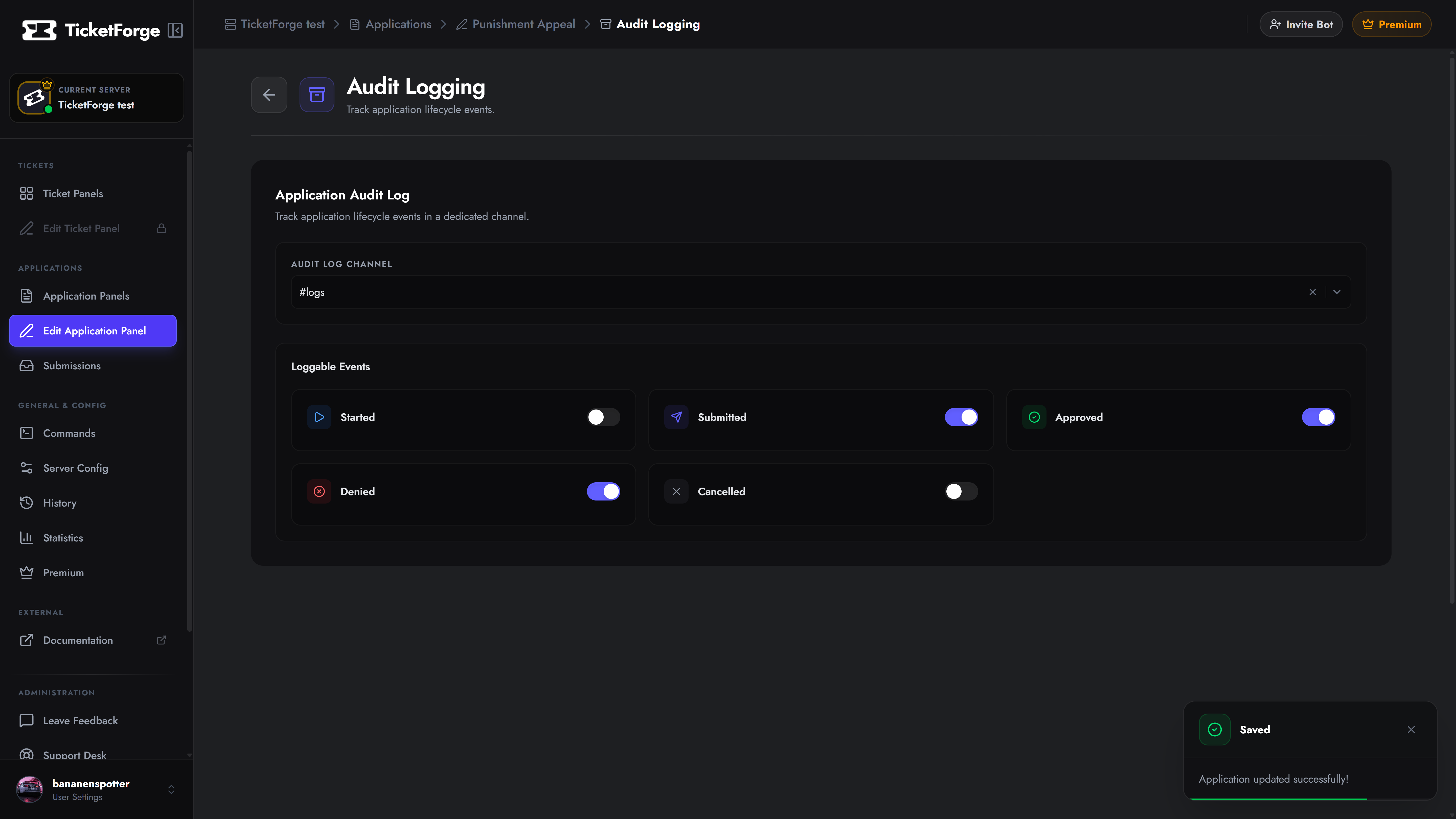
Navigate to Edit Application > Audit Logging to configure your event stream.
1. Setup
Section titled “1. Setup”To begin logging, simply select a private Audit Log Channel from the dropdown menu.
Once a channel is selected, the bot will post detailed, color-coded embeds into this channel whenever a significant event occurs. Each log entry includes:
- The exact timestamp of the event.
- The targeted user (the applicant).
- The staff member who executed the action (if applicable).
- The Application ID for easy cross-referencing in the dashboard.
2. Loggable Events
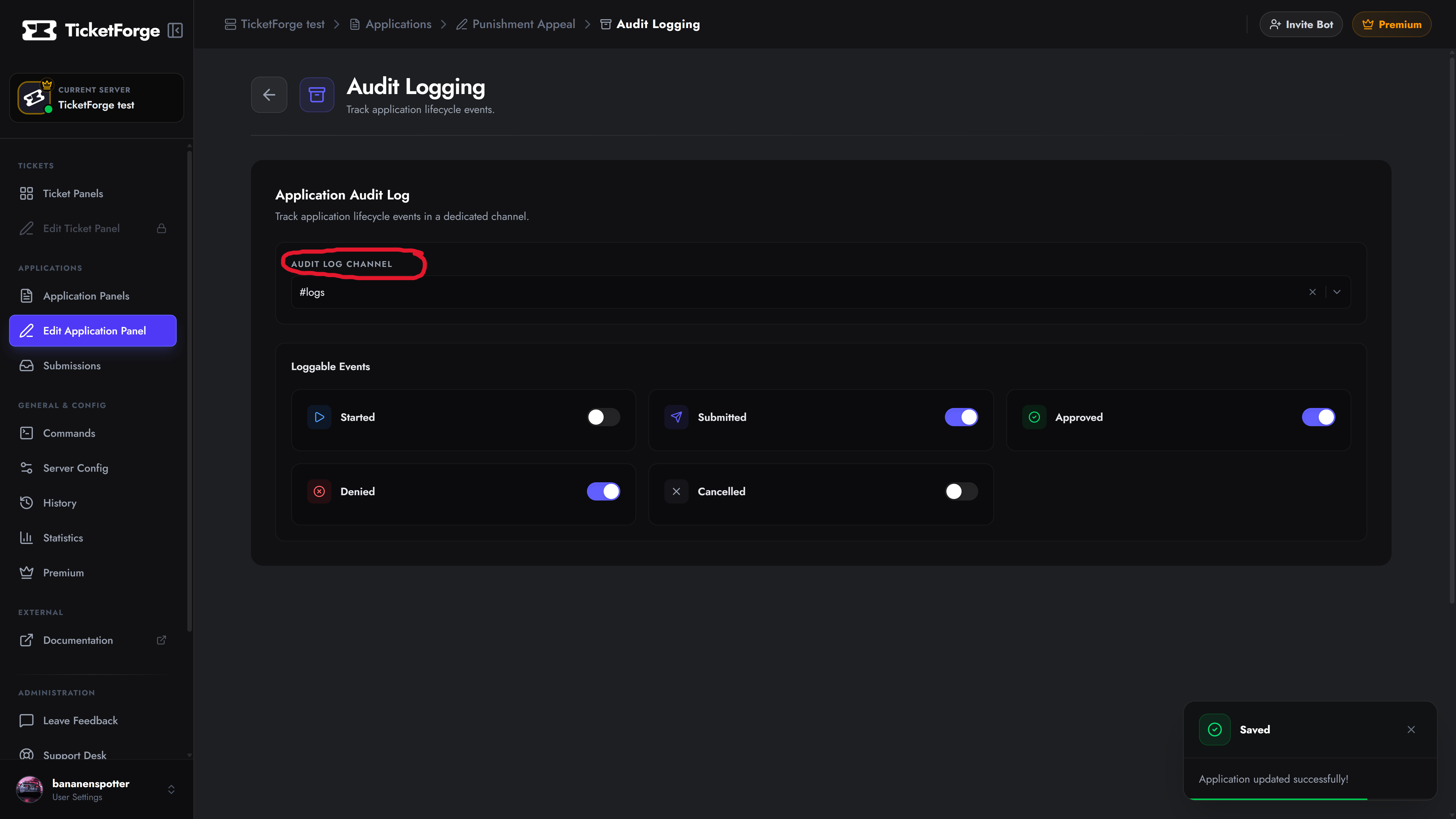
Section titled “2. Loggable Events”By default, some servers don’t want to be pinged for every tiny action. You can toggle specific events ON or OFF to reduce spam in your log channel:
| Event | Description |
|---|---|
| Started | Logs the exact moment a user clicks the trigger button and begins the form. Useful for tracking drop-off rates. |
| Submitted | Logs when a user successfully finishes the final question and submits the application. |
| Approved | Logs when a staff member officially Accepts the application. |
| Denied | Logs when a staff member officially Rejects the application. |
| Cancelled | Logs if a user manually aborts the process, or if their time limit expires before they can submit. |
