
The Application Editor
The Application Editor is your workspace for building and refining your forms. It features a real-time health check system, auto-save protection, and granular control over every aspect of your application workflow.
Editor Navigation
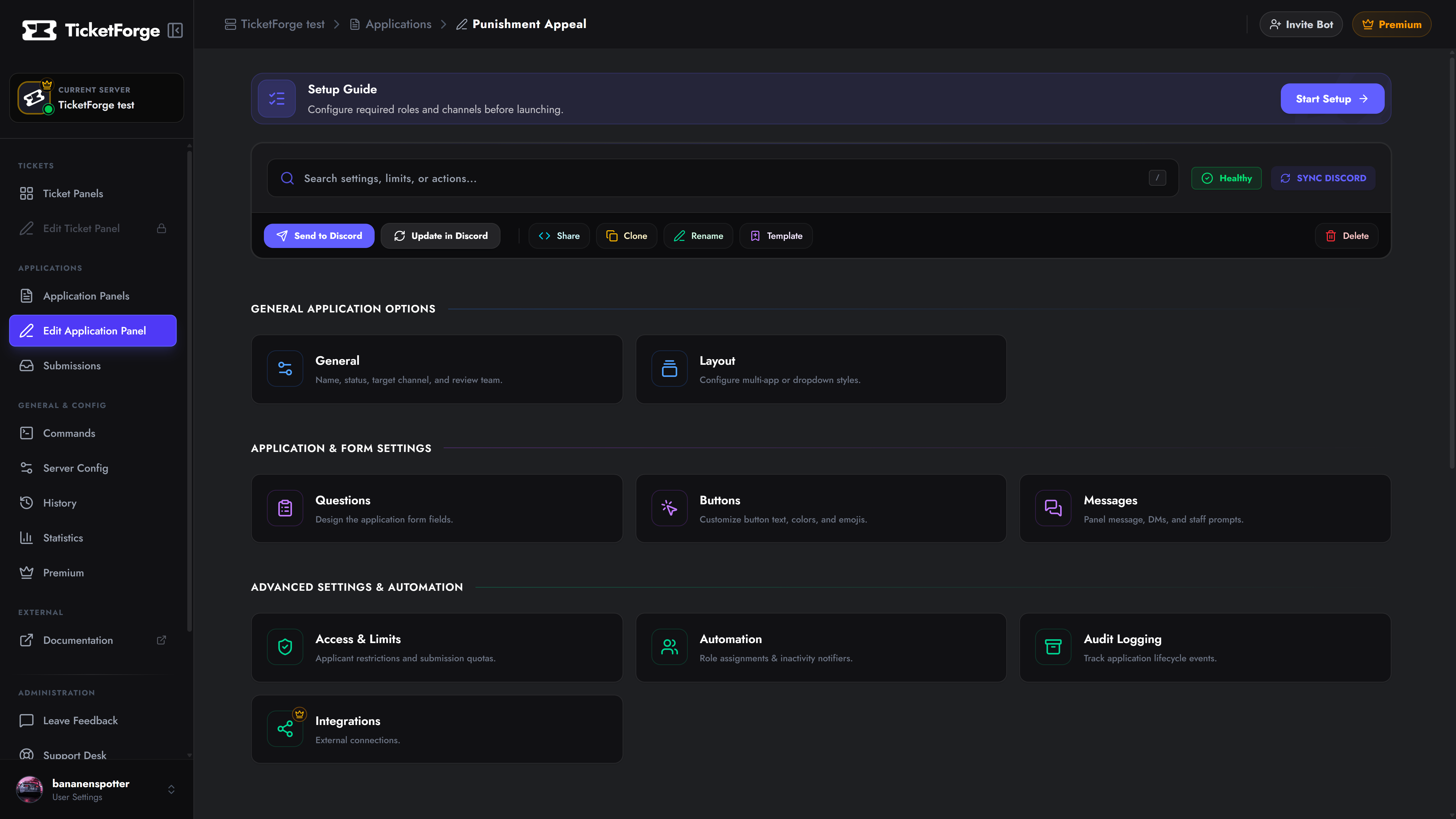
Section titled “Editor Navigation”The application settings are divided into logical categories to help you build your form step-by-step:
1. General & Visuals
Section titled “1. General & Visuals”- General — Rename the app, toggle its Active status, update the Target Results Channel, and select the Apply Method (DM, Web Portal, or Both).
- Layout — Switch between standard buttons, dropdown menus, or multi-app layouts.
- Questions — The core Form Builder. Add, edit, reorder, or set time limits on your questions.
- Buttons — Customize the color, label, and emoji of the button users click to start the app.
- Messages — Customize the text and embeds sent by the bot (Start Notice, Success Message, DM results, etc.).
2. Advanced & Automation
Section titled “2. Advanced & Automation”Powerful tools to restrict access and automate your workflow.
- Access & Limits — Restrict applications to specific roles, set cooldowns, and cap pending applications.
- Automation — Auto-assign roles when an application is submitted, accepted, or denied.
- Audit Logging — Post updates to a private channel when users start, submit, or cancel forms.
- Integrations (Premium) — Run the application under your own Custom Bot identity.
Editor Interface Features
Section titled “Editor Interface Features”Health Check (Status Badge)
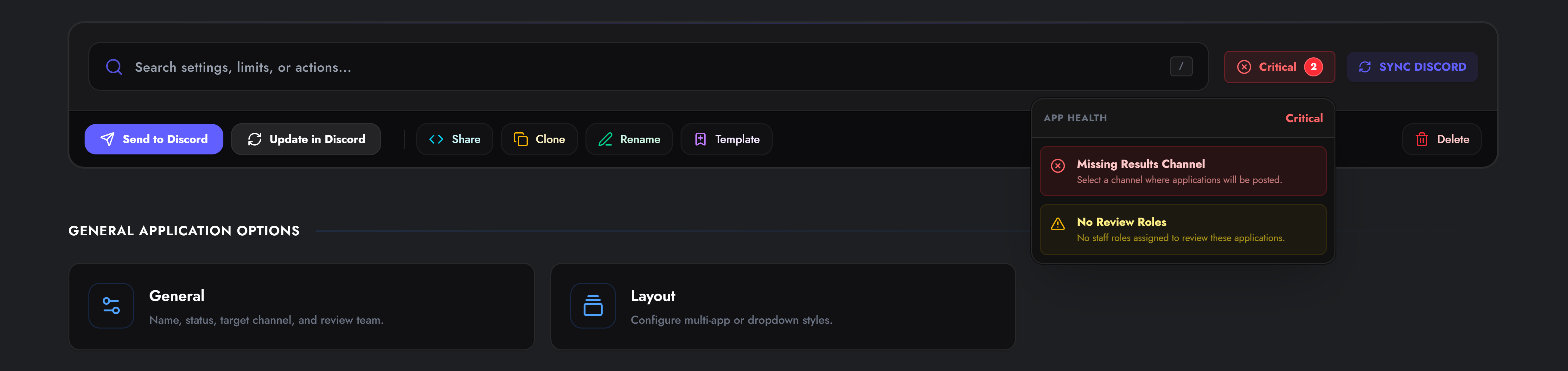
Section titled “Health Check (Status Badge)”In the top right toolbar, you will see a live App Health badge.
- 🟢 Healthy: The application is ready to use.
- 🟡 Warnings: Non-critical issues found (e.g., “No Review Roles selected”).
- 🔴 Critical: Errors that prevent the app from working (e.g., “Missing Target Results Channel”).
Click the badge to see a detailed checklist. Clicking on an issue will automatically scroll you to the exact setting that needs fixing.
Save System
Section titled “Save System”The editor tracks your changes locally. If you modify any setting, a Save Bar appears at the bottom of the screen.
- Discard: Reverts all unsaved changes to the last stable version.
- Save Changes: Pushes your configuration to the database and the live bot.

Action Menu
Section titled “Action Menu”Located in the top toolbar, these quick-actions allow you to deploy and manage the application itself.

| Action | Description |
|---|---|
| Send to Discord | Posts the configured trigger message/button to a channel of your choice. |
| Update in Discord | Updates the content/embeds of an existing application message without deleting it. |
| Share Code | Generates a XXXX-XXXX-XXXX code to safely share this configuration with another server. |
| Clone | Creates an exact duplicate of this application within the same server. |
| Template | Publishes this configuration to the Community Templates gallery. |
| Rename | Change the internal name of the application. |
| Delete | Permanently removes the application configuration. Cannot be undone. |