
Question Builder
The core of any application is the data you collect. The Question Builder is a powerful, drag-and-drop interface that lets you design the exact form your users will fill out.
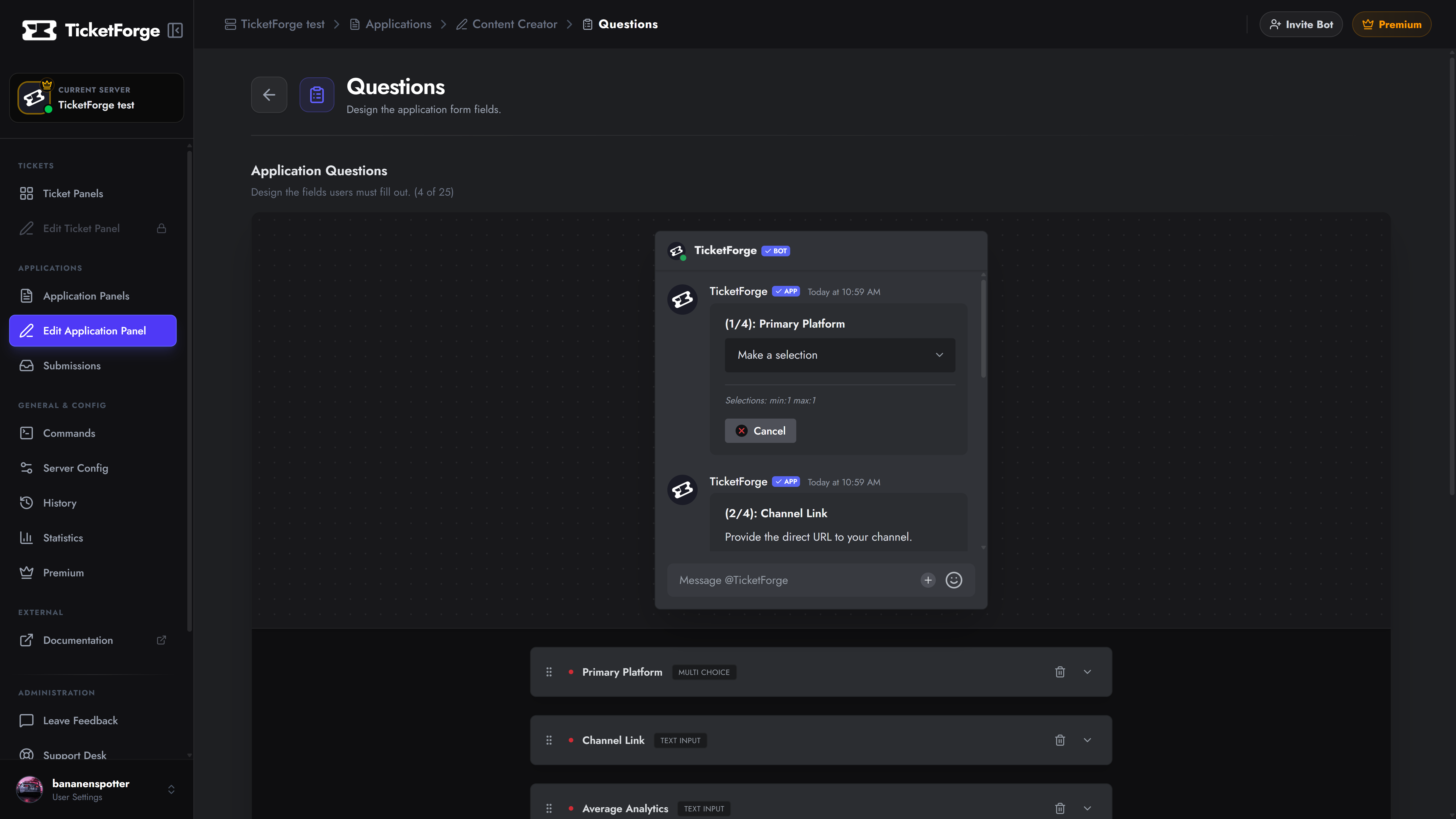
Navigate to Edit Application > Questions to open the builder.
1. Managing Questions
Section titled “1. Managing Questions”- Add a Question: Click the Add New Question button at the bottom of the list. You can add up to 10 questions on the Free plan, or 25 on Premium.
- Reorder: Click and hold the grip icon on the left side of any question to drag it up or down the list.
- Expand/Collapse: Click anywhere on a question’s header to open its configuration settings.
2. Basic Properties
Section titled “2. Basic Properties”Every question, regardless of its type, shares these core settings:
- Question Label: The actual prompt the user sees (e.g., “Why do you want to join the team?”).
- Description / Help Text: Smaller, secondary text used to provide context or instructions (e.g., “Please provide at least two sentences.”).
- Required Response: If toggled ON, the user cannot submit the application without answering this field. If toggled OFF, it becomes optional.
3. Response Types
Section titled “3. Response Types”TicketForge supports multiple ways for users to answer your questions. Select the Response Type at the top of the expanded question menu.
Text Answer
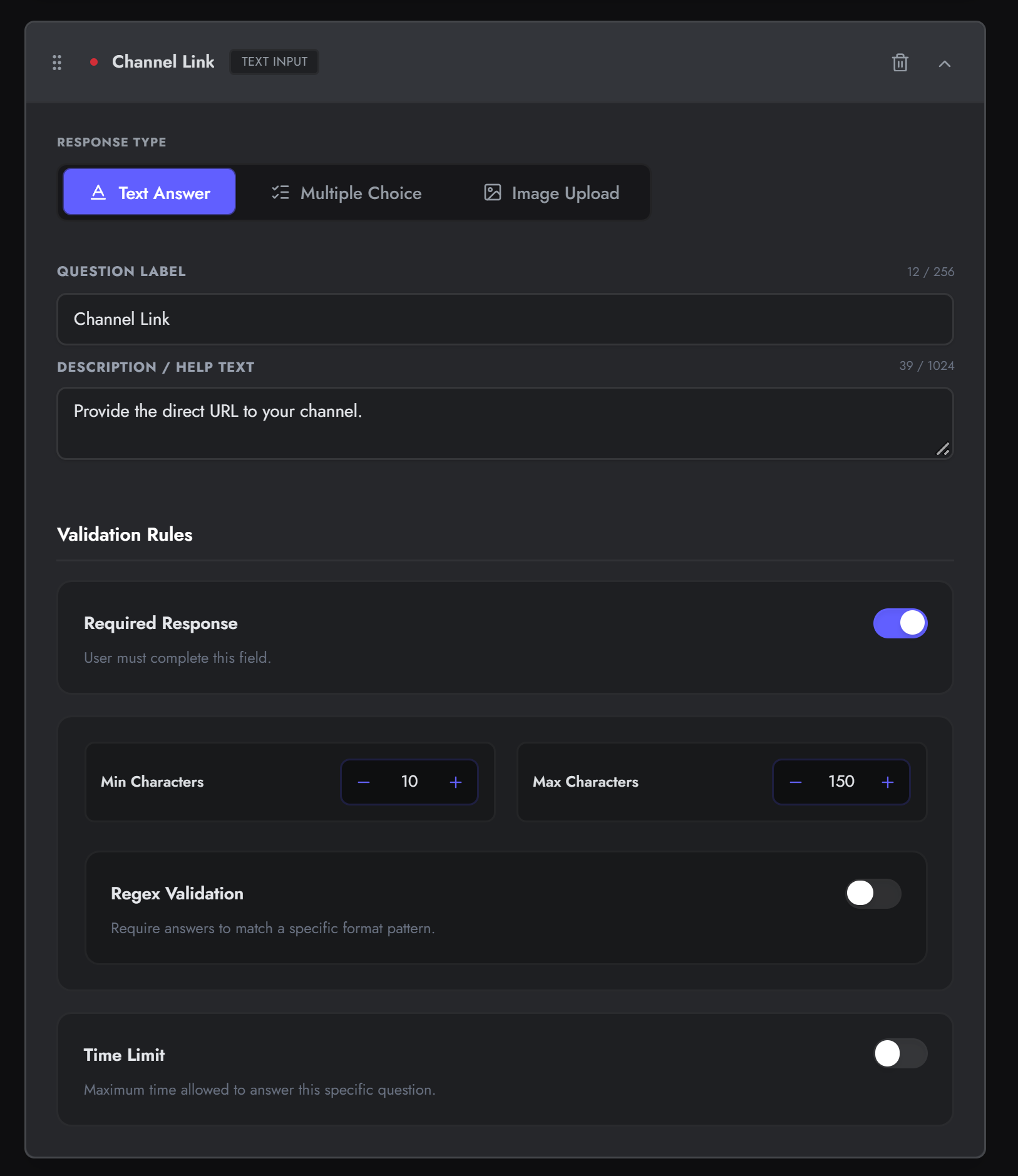
Section titled “Text Answer”The standard text input box.
- Min / Max Characters: Enforce strict length limits. Prevent one-word answers by setting a minimum character count, or prevent spam by capping the maximum length.
- Regex Validation: (Premium) Require the answer to match a specific mathematical pattern. Perfect for forcing users to enter valid email addresses, URLs, or specific ID formats.
Multiple Choice
Section titled “Multiple Choice”Provide users with a list of predefined options to choose from.
- Add Choices: Click Add Choice to create new options. You can have up to 5 choices (Free) or 25 choices (Premium) per question.
- Min / Max Selections: This setting dictates how the question behaves:
- Radio Buttons (Single Choice): Set Min to 1 and Max to 1. The user can only pick one answer.
- Checkboxes (Multiple Choice): Set Max to a number greater than 1. The user can select multiple options simultaneously.
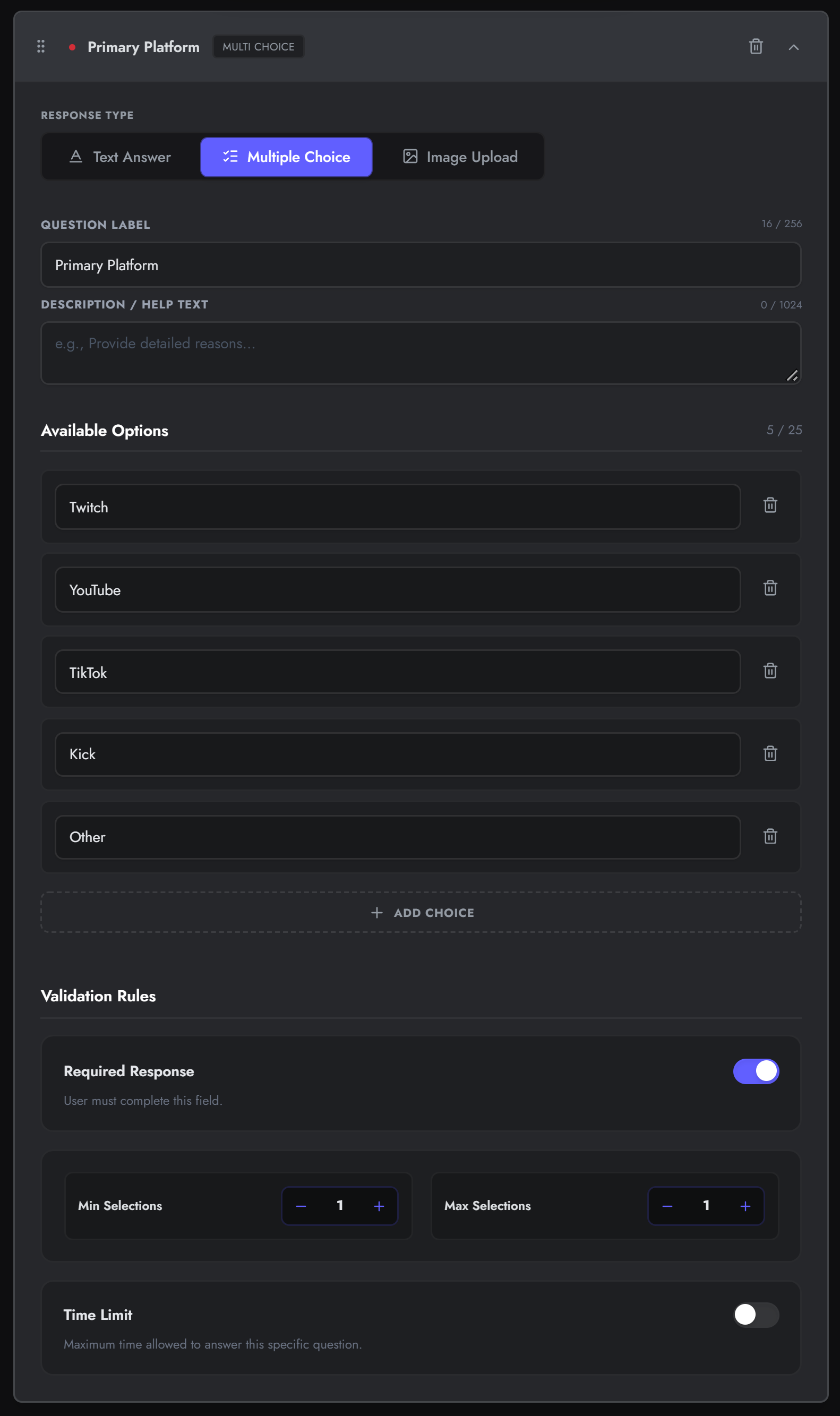
Image Upload (Premium)
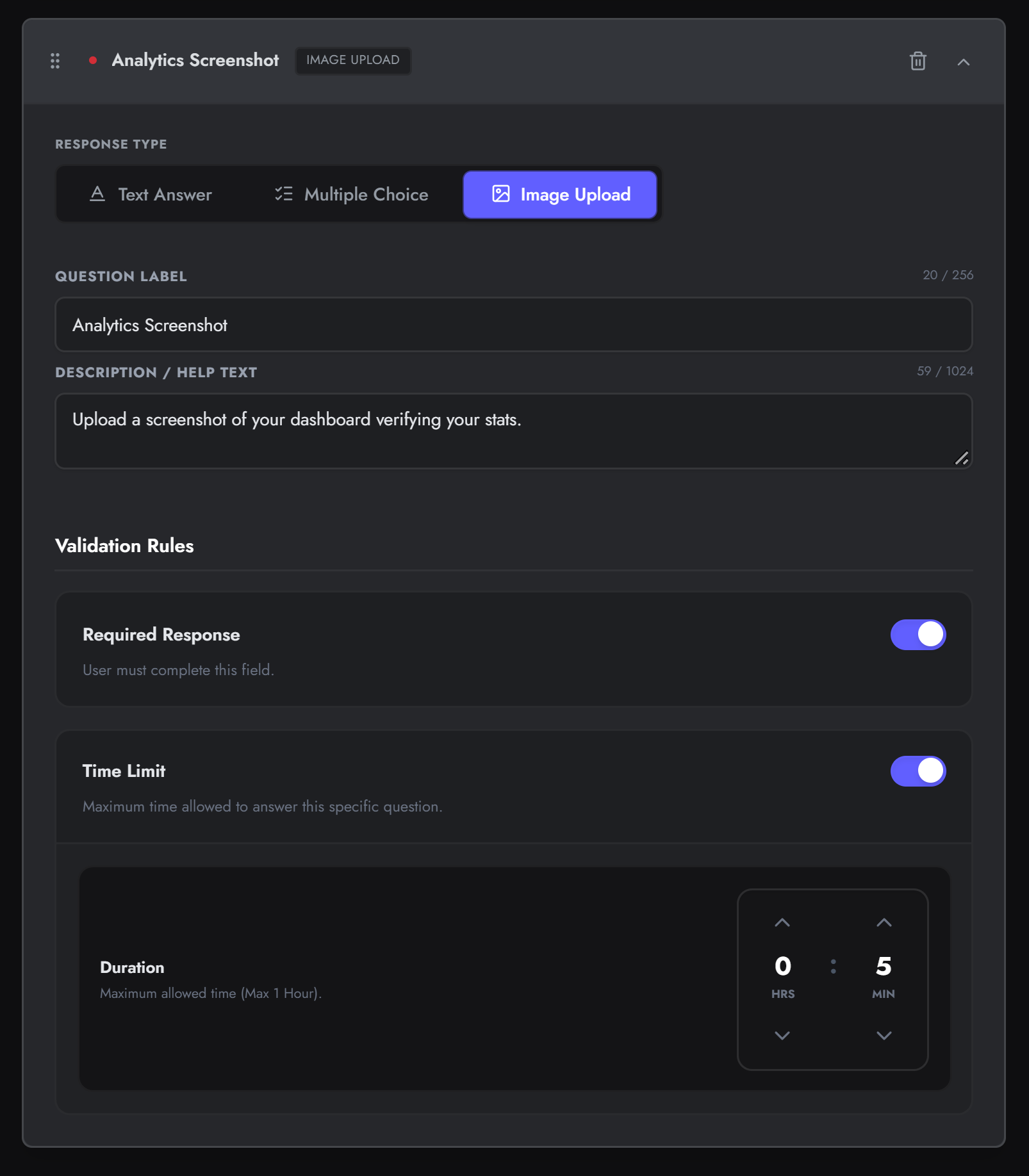
Section titled “Image Upload (Premium)”Requires the user to provide an image attachment.
- Best for: Age verification, building portfolios, or providing screenshot proof for ban appeals.
- Note: Users will be prompted to upload a file directly from their device or paste an image URL.
4. Time Constraints (Premium)
Section titled “4. Time Constraints (Premium)”Want to run a timed test or a strict questionnaire where users can’t spend hours Googling answers? You can enforce a strict Time Limit on individual questions.
- Toggle Time Limit to ON at the bottom of the question configuration.
- Set the Duration (e.g., 60 seconds).
- When the user reaches this question, a visible countdown timer will appear. If it hits zero, the question is locked, and they are forced to move to the next one.