
Application Messages & Component Builder
import { Tabs, TabItem } from ‘@astrojs/starlight/components’;
TicketForge provides a visual dual-engine message builder for your entire application workflow. Deliver application notices using traditional Discord Embeds (V1) or design rich, modular review cards with Components (V2).
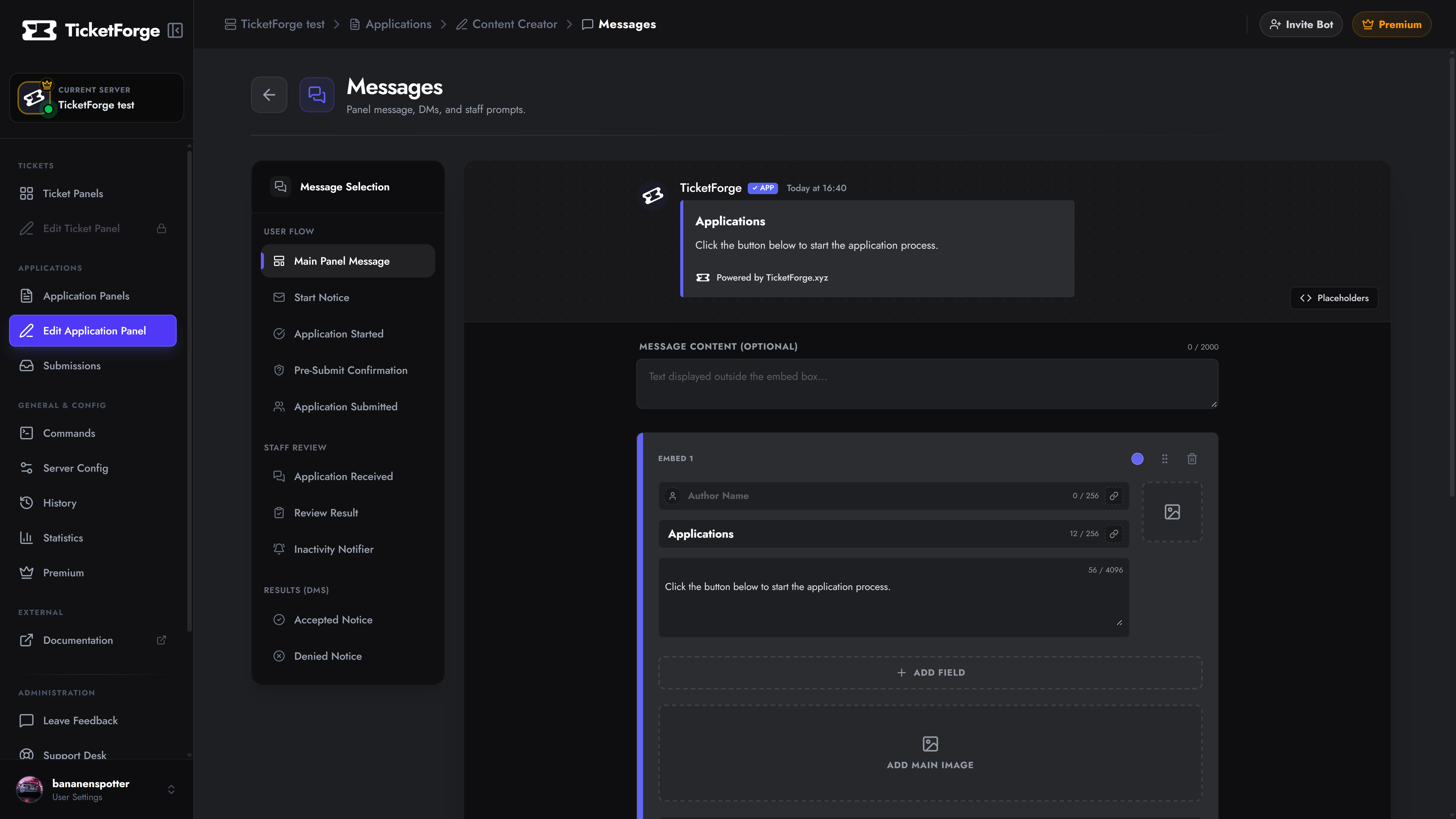
1. Choosing Your Application Message Format
Section titled “1. Choosing Your Application Message Format”At the top of the canvas editor in Application Editor > Messages, you can toggle between both engines:
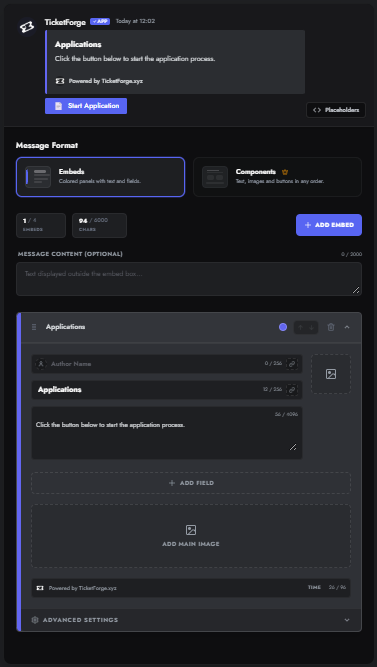
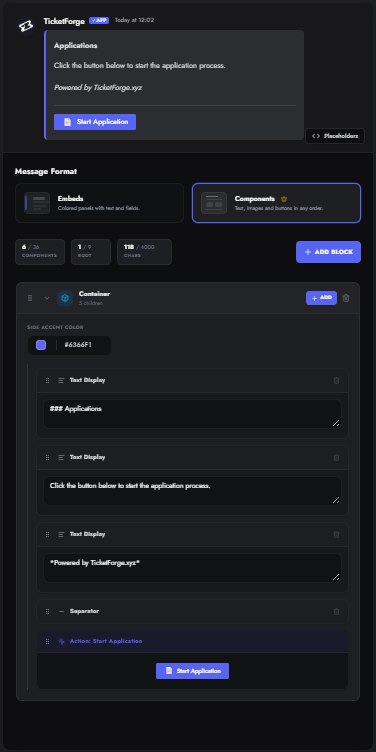
| Feature | Embeds (V1) | Components (V2) |
|---|---|---|
| Layout Style | Standard vertical embed cards with accent borders | Modular layout: containers, question blocks, and inline buttons |
| Max Capacity | Up to 4 embeds per message | Up to 9 root blocks & 36 total nested components |
| Character Limit | 6,000 characters total across embeds | 4,000 characters total |
| Staff Review Actions | Fixed button rows at the very bottom | Embedded directly inside review containers or section rows |
| Submission Logs | Required (V1 only) | ❌ Unavailable for persistent HTML archives |
2. Components (V2) for Applications
Section titled “2. Components (V2) for Applications”(Premium Feature)
Components V2 allows you to build review cards where applicant details, specific answers, and reviewer controls (Accept, Deny, Notes) are logically grouped.
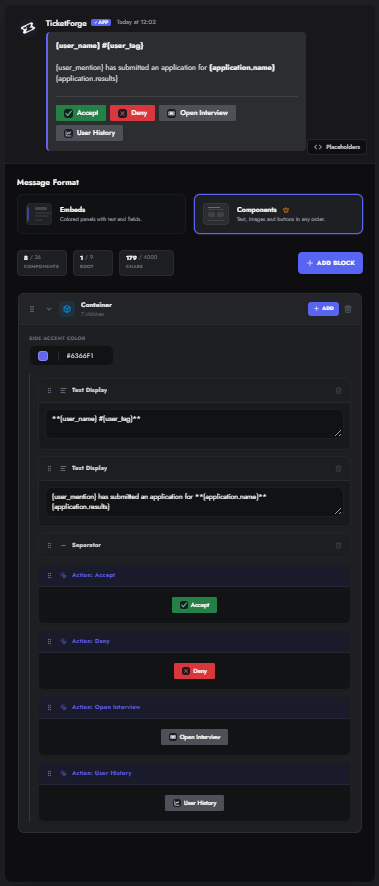
Component Block Types
Section titled “Component Block Types”| Block Type | Description | Application Use Case |
|---|---|---|
| Container | Outer card with an optional left accent border. | Grouping submission answers or reviewer decision logs. |
| Section | Two-column split row: content on the left, accessory on the right. | Displaying applicant summary with their avatar or a quick Review button. |
| Text Display | Markdown block. Supports bold text, links, and code blocks. | Showing question prompts, candidate answers, and requirements. |
| Image | Wide media banner (max height: 300px). | Recruitment banners or department headers. |
| Thumbnail | Compact square graphic (56×56px / 64×64px). | Server branding or applicant avatar accessory. |
| Separator | Visual horizontal rule. | Dividing applicant answers from reviewer controls. |
| Link Button | Clickable URL button pointing to external websites. | Linking to external portfolios, Google Docs, or GitHub profiles. |
| Action Button | System-managed interactive button. | Triggering application logic (Accept, Deny, Request Info). |
| Select Menu | Interactive dropdown anchor. | Department selection or denial reason presets. |
Structural Limits & Nesting Rules
Section titled “Structural Limits & Nesting Rules”To ensure application messages reliably send without Discord API payload errors:
- Hierarchy Limits:
- Root Blocks: Maximum of 9 top-level blocks.
- Total Components: Maximum of 36 total components (including all nested items).
- Text Budget: Maximum of 4,000 characters across all questions, labels, and text displays.
- Container Restrictions:
- Containers cannot be nested inside other containers.
- Section Restrictions:
- A Section can contain Markdown text and a single accessory (thumbnail or button). It cannot contain another Section or Container.
- Mobile Responsive Stacking:
- On mobile devices, sections with review action buttons automatically stack the button full-width beneath the text to preserve readable answers.
Application Interaction Safeguards
Section titled “Application Interaction Safeguards”When working with review controls (Accept, Deny, Hold):
- Reviewer Action Sync: When switching review formats (e.g., Button Actions vs. Modal Deny Reasons), the builder preserves and synchronizes the Accept and Deny action anchors.
- Orphan Button Safeguard: Deleting a container that holds active review buttons will automatically move those buttons into the next available container, preventing applications from becoming un-reviewable.
- One-Click V1 $\rightarrow$ V2 Converter: Convert classic application embeds into styled V2 containers and answer blocks with one click.
3. Classic Embeds (V1) Engine
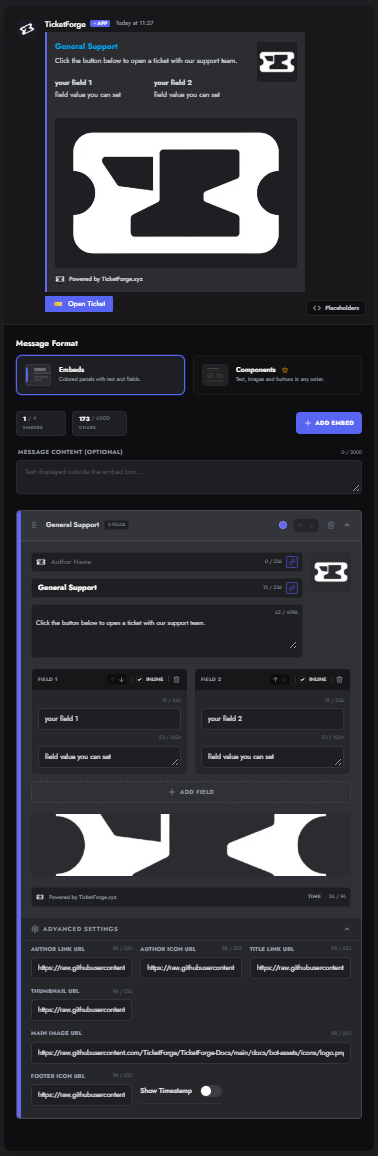
Section titled “3. Classic Embeds (V1) Engine”The V1 engine provides classic embed cards with high-density field grids, ideal for reading multi-question responses.
Embed Structure & Capacity
Section titled “Embed Structure & Capacity”- Multi-Embed Support: Up to 10 embeds per application message.
- Character Budget: Up to 6,000 characters total per message.
- Accent Colors: Custom hex color pickers per embed state (e.g., pending gold, accepted green, denied red).
Question & Field Hierarchy
Section titled “Question & Field Hierarchy”- Author: Applicant’s avatar, username, and ID.
- Title: Application title or target position (e.g., Staff Application — Senior Moderator).
- Description: Introduction, application overview, or reviewer notes.
- Fields (Q&A Pairs):
- Inline Fields: Displays short answers (e.g., Age, Timezone, Mic Available?) side-by-side in 2 or 3 columns.
- Standard Fields: Spans the full width for long essay responses.
- Media:
- Thumbnail: Small top-right icon (e.g., applicant avatar or role badge).
- Main Image: Full-width recruitment banner below questions.
- Footer: Submission timestamp and application reference ID (
#APP-0042).
4. Reordering & Drag-and-Drop
Section titled “4. Reordering & Drag-and-Drop”Organize question blocks, answers, and staff action rows with drag-and-drop:
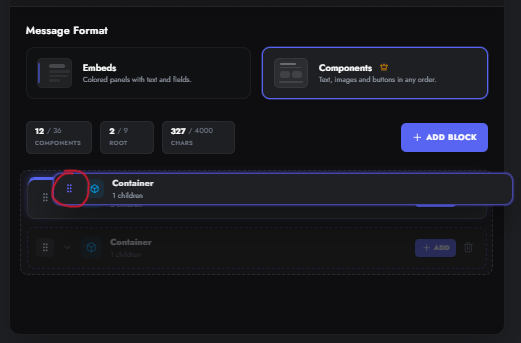
- Pointer Grab: Grab the grip icon (
⋮⋮) on any question card, embed, or component block. - Drop Highlighting:
- Blue top/bottom bar: Places the item before or after the targeted block.
- Blue inner box: Places the item inside an answer container or section.
- Arrow Controls (V1): Use the Up and Down arrow buttons on embed headers to reorder embeds directly.
5. Dynamic Application Placeholders
Section titled “5. Dynamic Application Placeholders”Inject live applicant and review data anywhere across your text blocks, embed fields, or URLs:
Applicant & User Data
Section titled “Applicant & User Data”{applicant_mention}— Mentions the applicant (@User).{applicant_name}— Plain username of the applicant.{applicant_id}— Discord Snowflake ID of the applicant.{applicant_avatar}— Direct avatar image URL of the applicant.
Application & Submission Data
Section titled “Application & Submission Data”{app_title}— The title of the application form.{app_id}— The internal ID of the application configuration.{submission_id}— Unique reference code for the submission.{submission_url}— Direct URL to the submission on the web portal.
Review & Decision Data
Section titled “Review & Decision Data”{reviewer_mention}— Mentions the staff member who processed the application.{reviewer_name}— Username of the reviewing staff member.{status}— Current status (Pending,Accepted,Denied,Waitlisted).{reason}— Denial or hold reason entered by the reviewer.
6. Available Application Lifecycle Triggers
Section titled “6. Available Application Lifecycle Triggers”Customize your messages across each stage of the application workflow under Application Editor > Messages:
| Trigger Name | Format Options | Delivery Location | When It Fires |
|---|---|---|---|
| Apply Portal Message | V1 Embed or V2 Components | Public Channel | Posted in your apply channel; contains the “Apply” button or dropdown. |
| Submission Review Card | V1 Embed or V2 Components | Staff Review Channel | Sent to staff containing candidate answers and Accept / Deny action buttons. |
| Applicant Receipt DM | V1 Embed or V2 Components | User DMs | Automated confirmation receipt sent to the user immediately upon submission. |
| Accepted DM | V1 Embed or V2 Components | User DMs | Sent when staff approve the application (often accompanied by automated role assignment). |
| Denied DM | V1 Embed or V2 Components | User DMs | Sent when staff deny the application; supports the {reason} placeholder. |
| Under Review Notice | V1 Embed or V2 Components | User DMs / Channel | Optional notice sent if an application is placed on hold or moved to an interview stage. |
| Archive Log | V1 Embed Only | Private Log Channel | Permanent record posted with the attached application history and staff audit log. |