
Processing Submissions
When users complete an application, their answers are sent to two places simultaneously: your Target Results Channel in Discord, and your web dashboard.
While you can review applications entirely within Discord using the buttons attached to the application embeds, the Submissions Dashboard provides a powerful, unified inbox for your staff to manage high volumes of applicants.
1. The Submissions Inbox
Section titled “1. The Submissions Inbox”Navigate to Submissions on the dashboard sidebar to view all applications across your server.
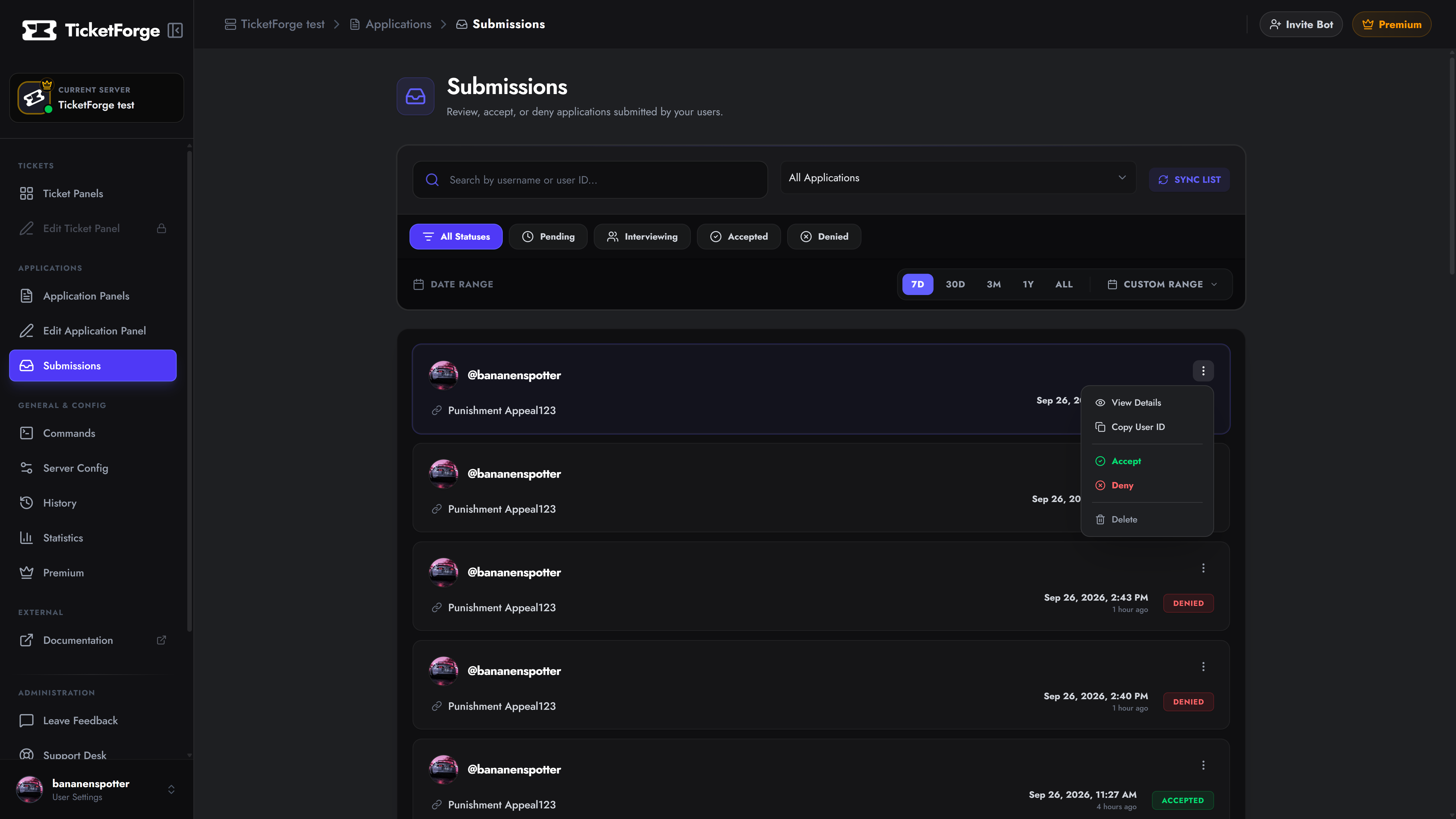
Filtering & Searching
Section titled “Filtering & Searching”Use the top control bar to quickly find what you’re looking for:
- Search: Look up a specific user by their Discord Username or User ID.
- Panel Filter: Only show submissions from a specific application (e.g., only show “Builder Applications”).
- Status Filter: Filter by lifecycle state:
- Pending: Awaiting review.
- Interviewing: Pushed to a secondary stage.
- Accepted / Denied: Resolved applications.
- Date Range: Filter submissions from the last 7 days, 30 days, or a custom range.
2. Viewing Application Details
Section titled “2. Viewing Application Details”Clicking on any submission card opens the Details Modal, giving you complete context before making a decision.
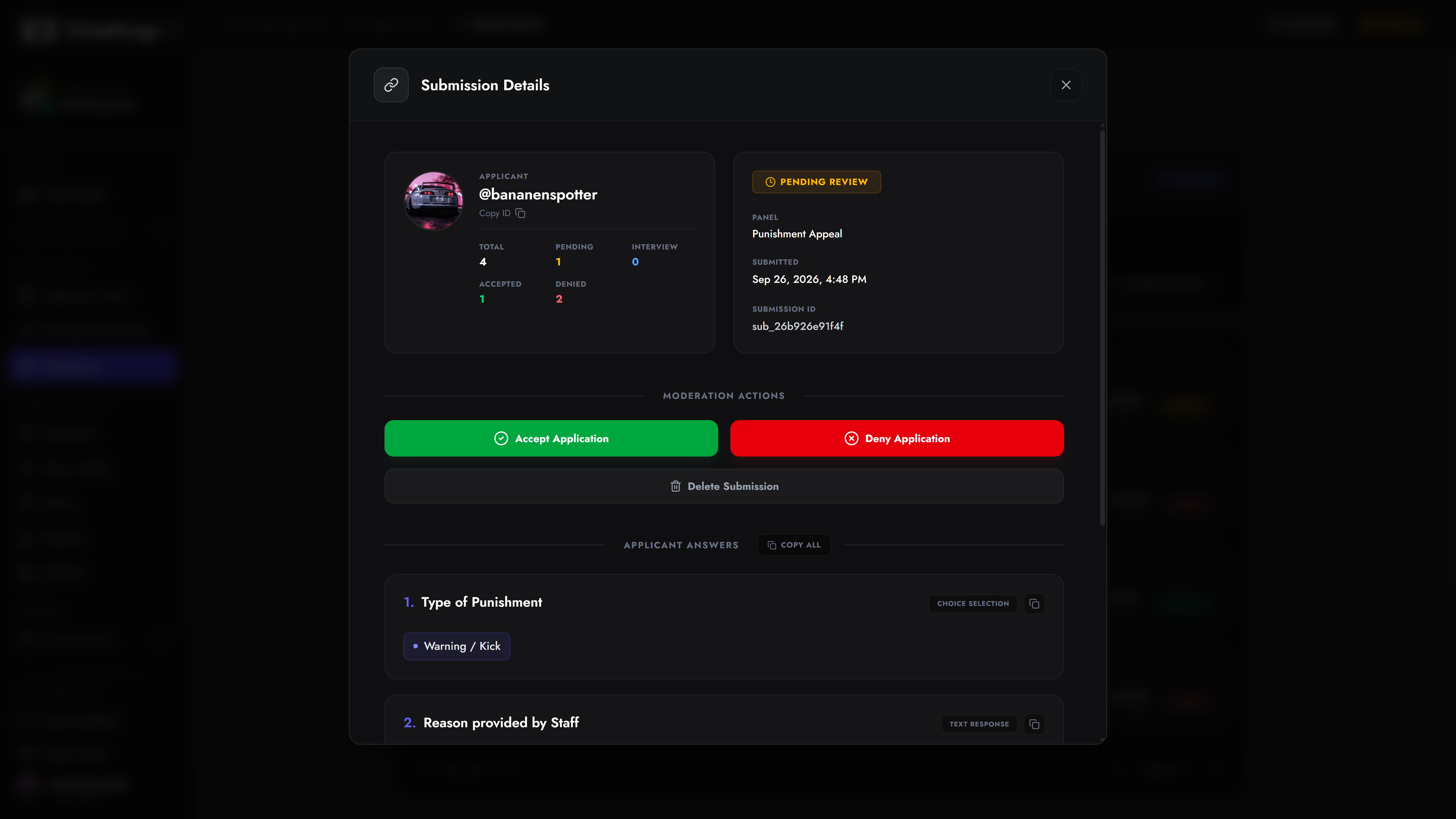
Applicant Profile & History
Section titled “Applicant Profile & History”At the top of the modal, you’ll see the user’s avatar, Discord ID, and a historical summary. This helps you identify serial applicants or users who have been repeatedly denied in the past. Displays their Total, Pending, Interviewing, Accepted, and Denied counts.
Applicant Answers
Section titled “Applicant Answers”Scroll down to view exactly how the user answered your form.
- Text Answers: Displayed in easily readable blocks.
- Multiple Choice: Displayed as clean, tagged pills.
- Image Uploads: Rendered directly in the dashboard so you don’t have to open external links to verify proof or portfolios.
3. Moderation Actions
Section titled “3. Moderation Actions”As a staff member (with a designated Review Role), you can finalize the application using the action buttons.
Accept or Deny
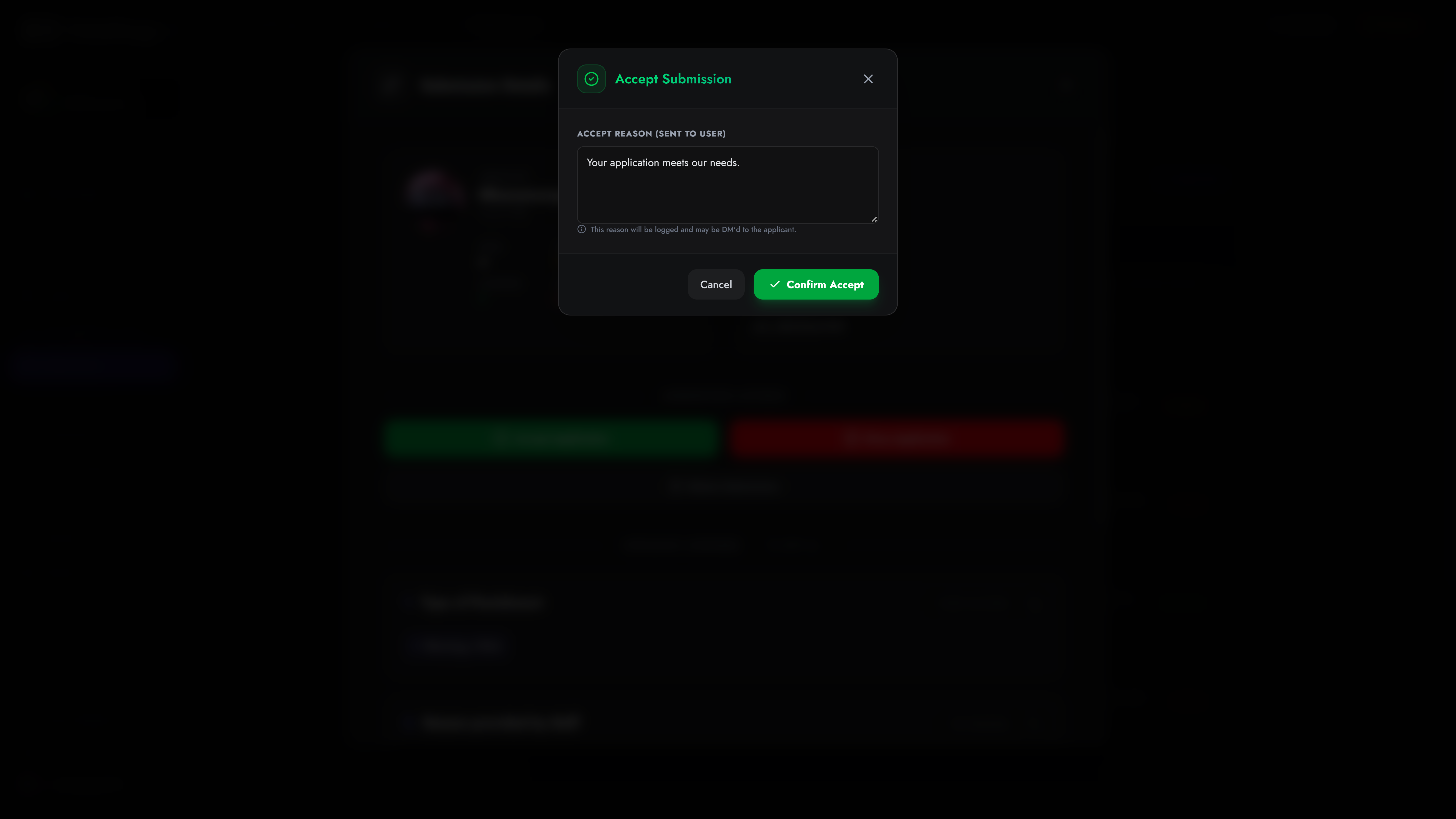
Section titled “Accept or Deny”Clicking Accept or Deny will open a confirmation prompt requiring a Reason.
- This reason is logged for your internal records.
- If you have Result DMs configured, this reason is directly messaged to the applicant.
- Any configured Role Automation (e.g., giving them the “Staff” role) triggers instantly upon confirmation.
Delete
Section titled “Delete”Permanently wipes the submission from the database. Use this for spam or test applications. This action is irreversible.
Anonymous Submissions
Section titled “Anonymous Submissions”If your application allows Anonymous Submissions (common for feedback forms), the submission will be marked with a special ANONYMOUS badge.
Because there is no Discord account attached to the submission, you cannot Accept or Deny anonymous forms. They are strictly read-only data for your team.
4. Discord Integration
Section titled “4. Discord Integration”You don’t have to use the web dashboard! TicketForge is deeply integrated into Discord.
When a user submits an application, the bot posts an embed in your Target Results Channel containing their answers and attached Staff Action Buttons (Accept, Deny, Open Interview, User History).
Your staff can click these buttons directly inside Discord to trigger the exact same moderation modals and automations as the web dashboard.