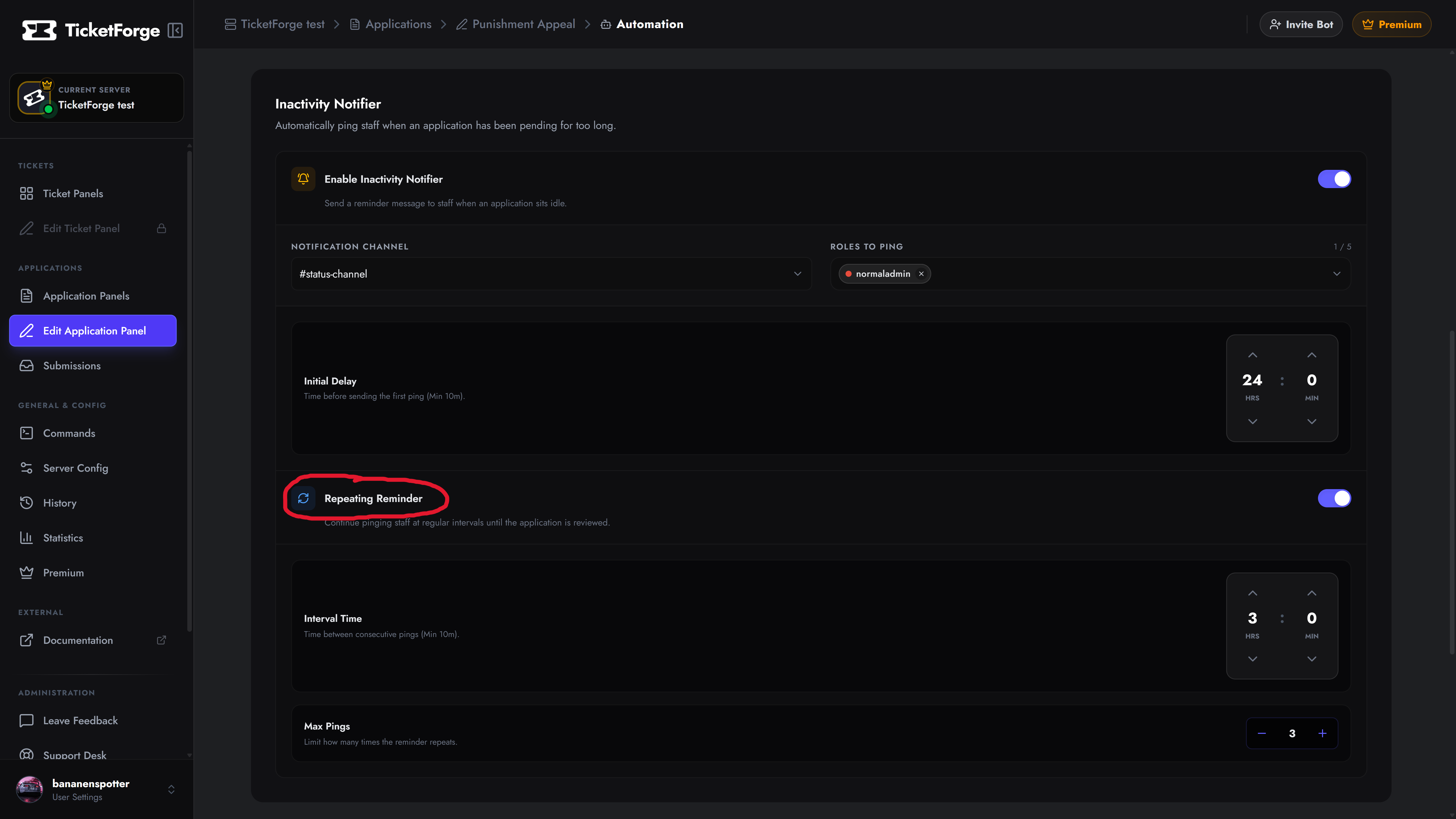
Inactivity Notifier
(Premium Feature)
Never let an application slip through the cracks. The Inactivity Notifier acts as a smart alarm clock for your staff. If an application sits in the “Pending” state for too long without being reviewed, the bot will automatically send a reminder ping to your team.
Navigate to Edit Application > Automation to configure your notifier settings.
1. Basic Configuration
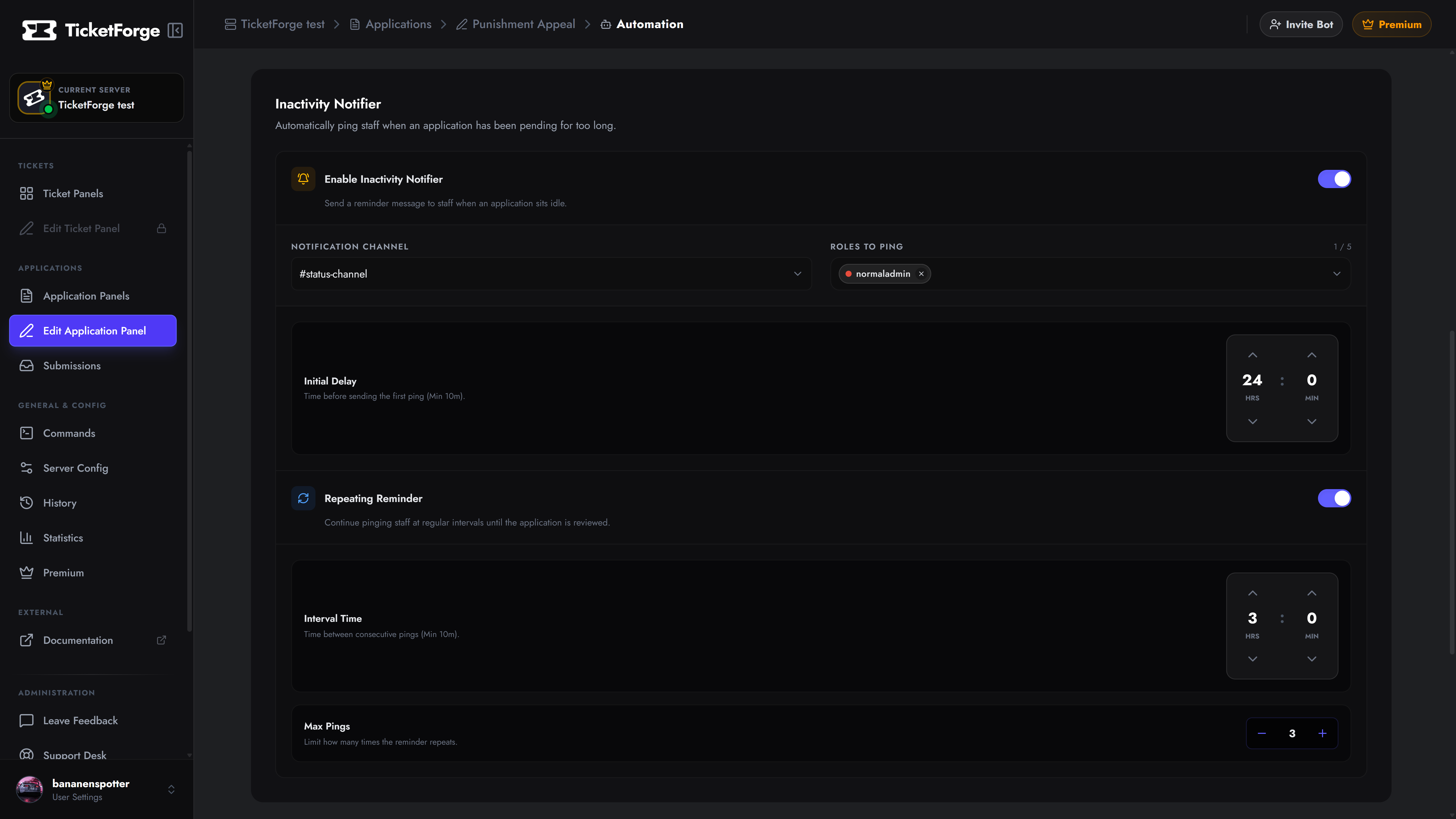
Section titled “1. Basic Configuration”To enable the notifier, you need to define where the alert goes and who it pings:
- Enable Inactivity Notifier: Toggle the master switch to ON.
- Notification Channel: Select the text channel where the reminder ping should be sent. This is usually a private
#staff-chator#managementchannel. - Roles to Ping: Select the specific Discord roles (e.g.,
@Revieweror@Admin) that should be mentioned in the alert. - Initial Delay: The amount of time the application must sit idle before the first ping is sent (e.g., 24 hours).
2. Repeating Reminders
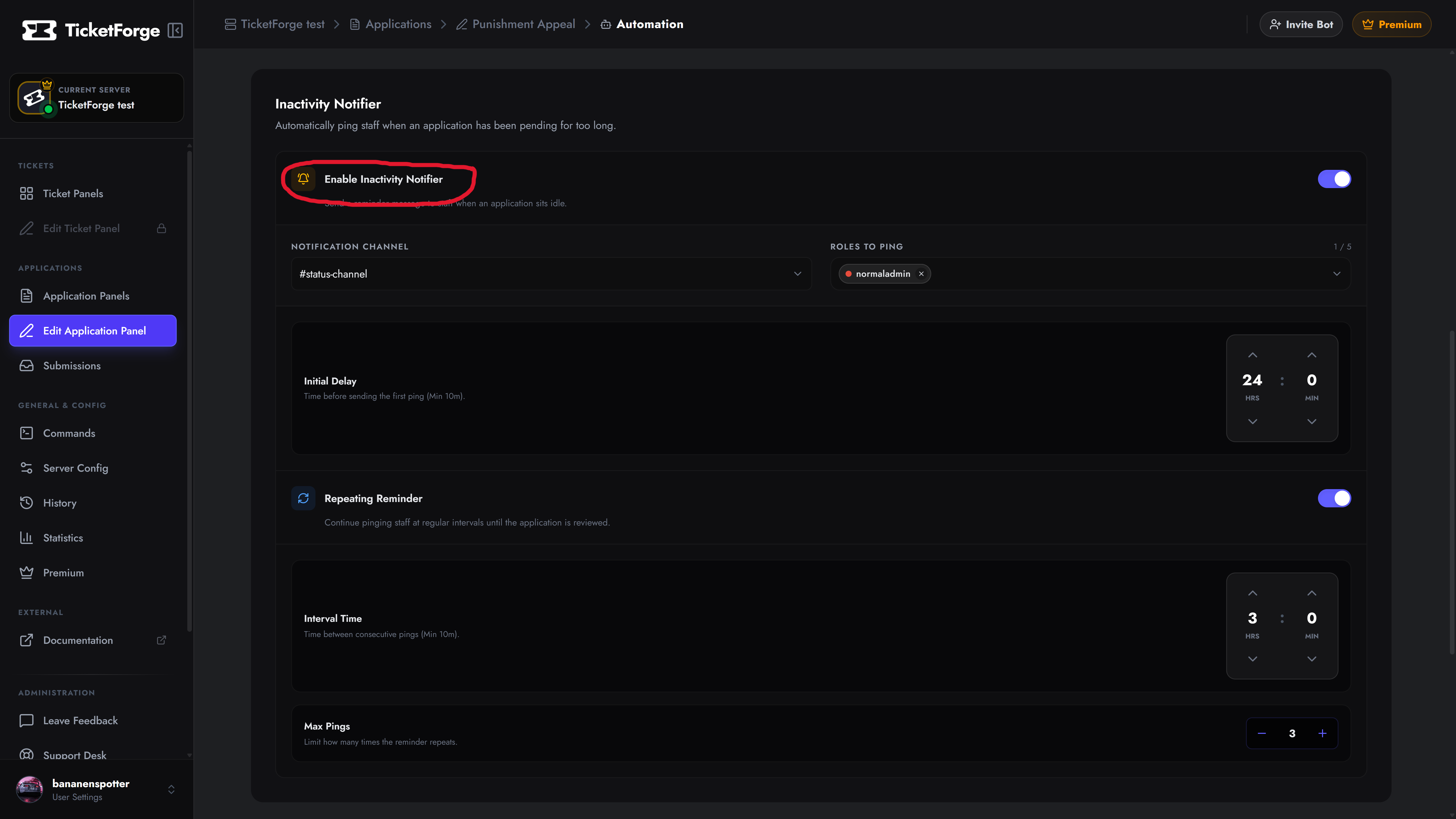
Section titled “2. Repeating Reminders”If your team is busy, a single ping might get lost in the chat. You can enable Repeating Reminders to have the bot continuously follow up until a staff member finally clicks Accept or Deny.
- Interval Time: The amount of time the bot should wait between consecutive pings (e.g., every 12 hours).
- Max Pings: Limit how many times the reminder repeats. For example, setting this to
3means the bot will stop pinging after the 3rd reminder, preventing endless spam if your team is genuinely unavailable.