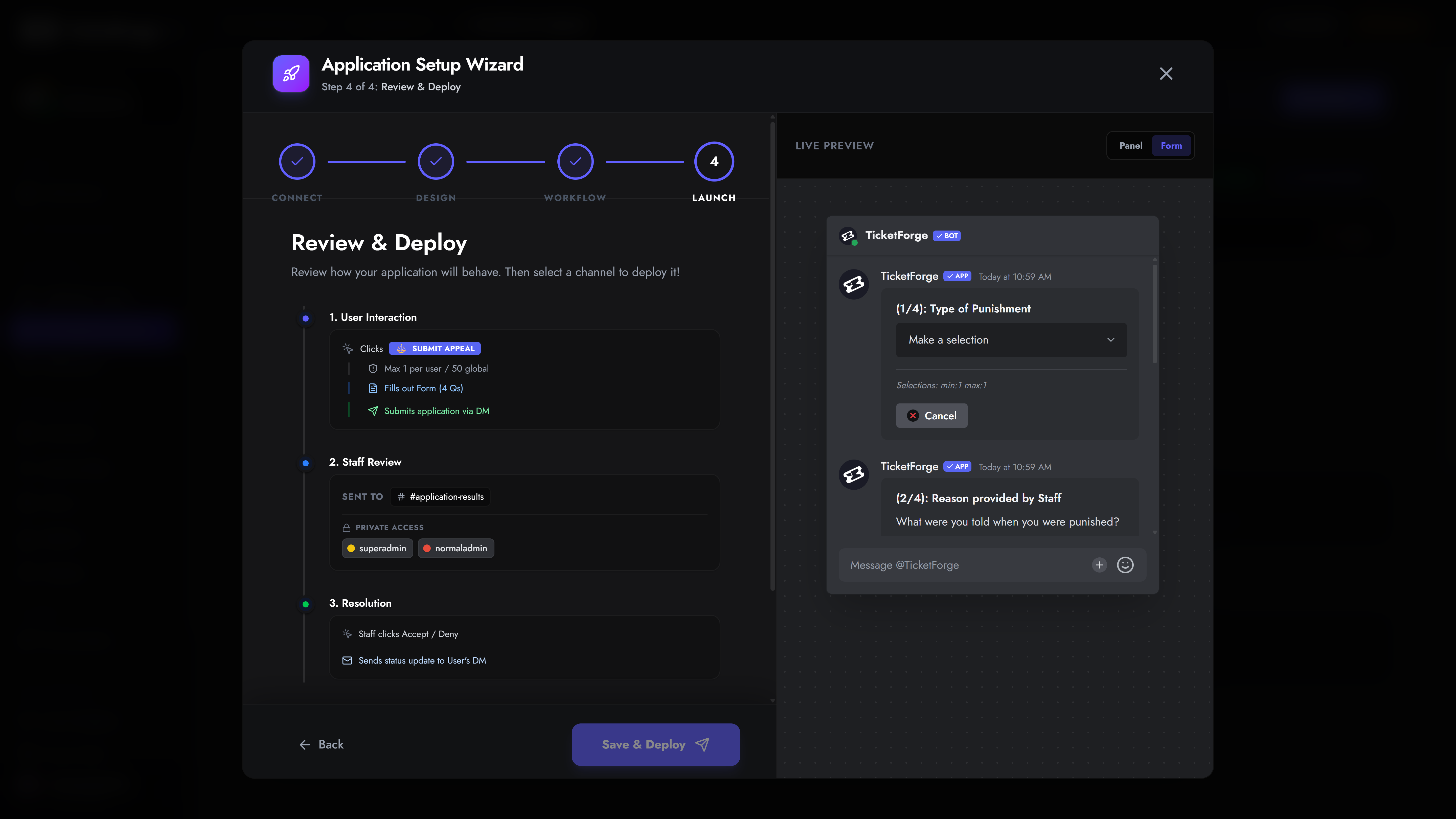
Creating an Application
An Application allows you to collect structured data from your users through dynamic forms. TicketForge allows you to build multiple applications for different purposes (e.g., “Staff Recruitment”, “Ban Appeals”, “Giveaway Entry”).
1. Login & Access
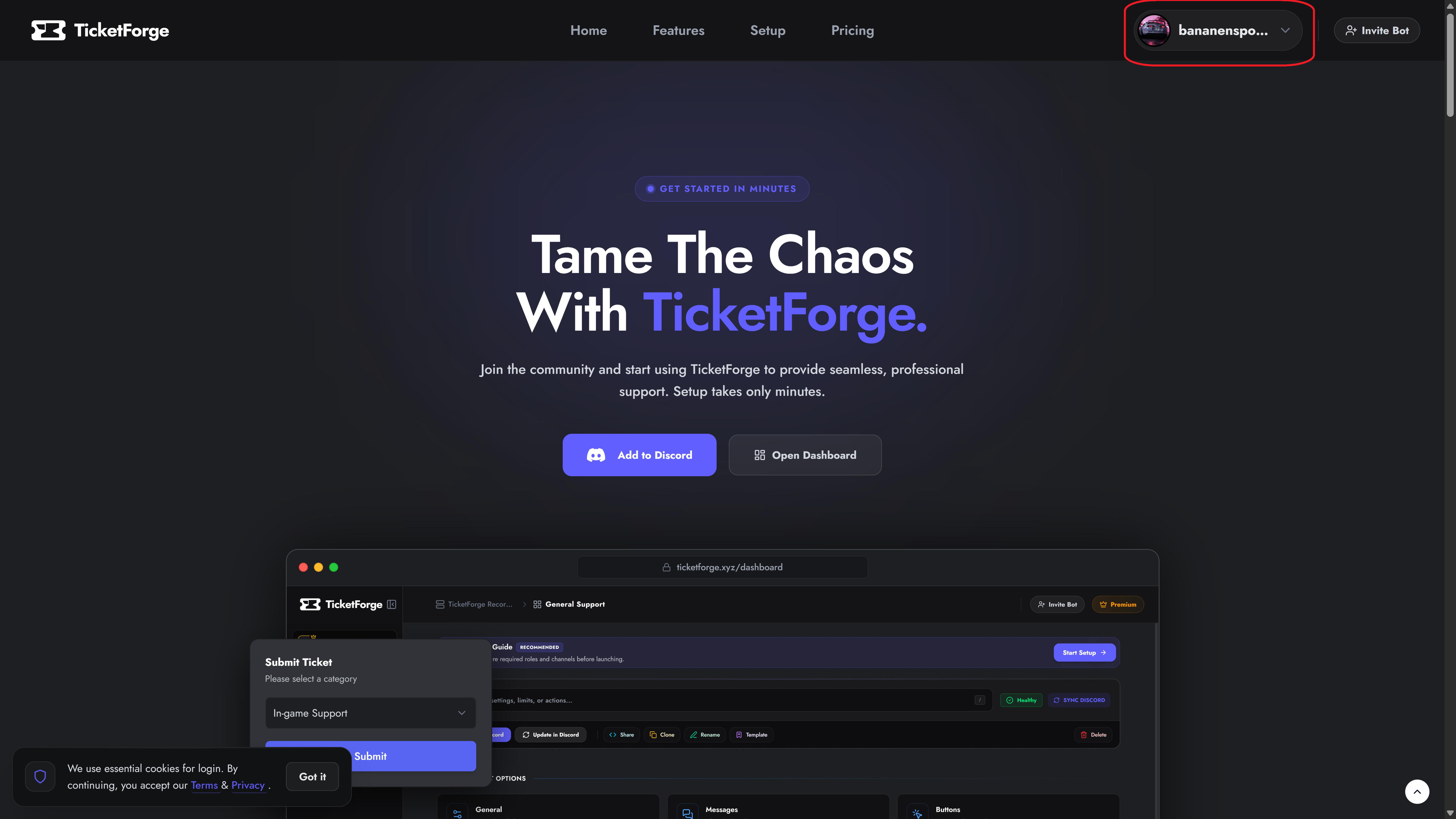
Section titled “1. Login & Access”To begin, visit the TicketForge Website.
- Click the Login with Discord button in the top right corner.
- Authorize the TicketForge application to access your account information.
2. Server Selection
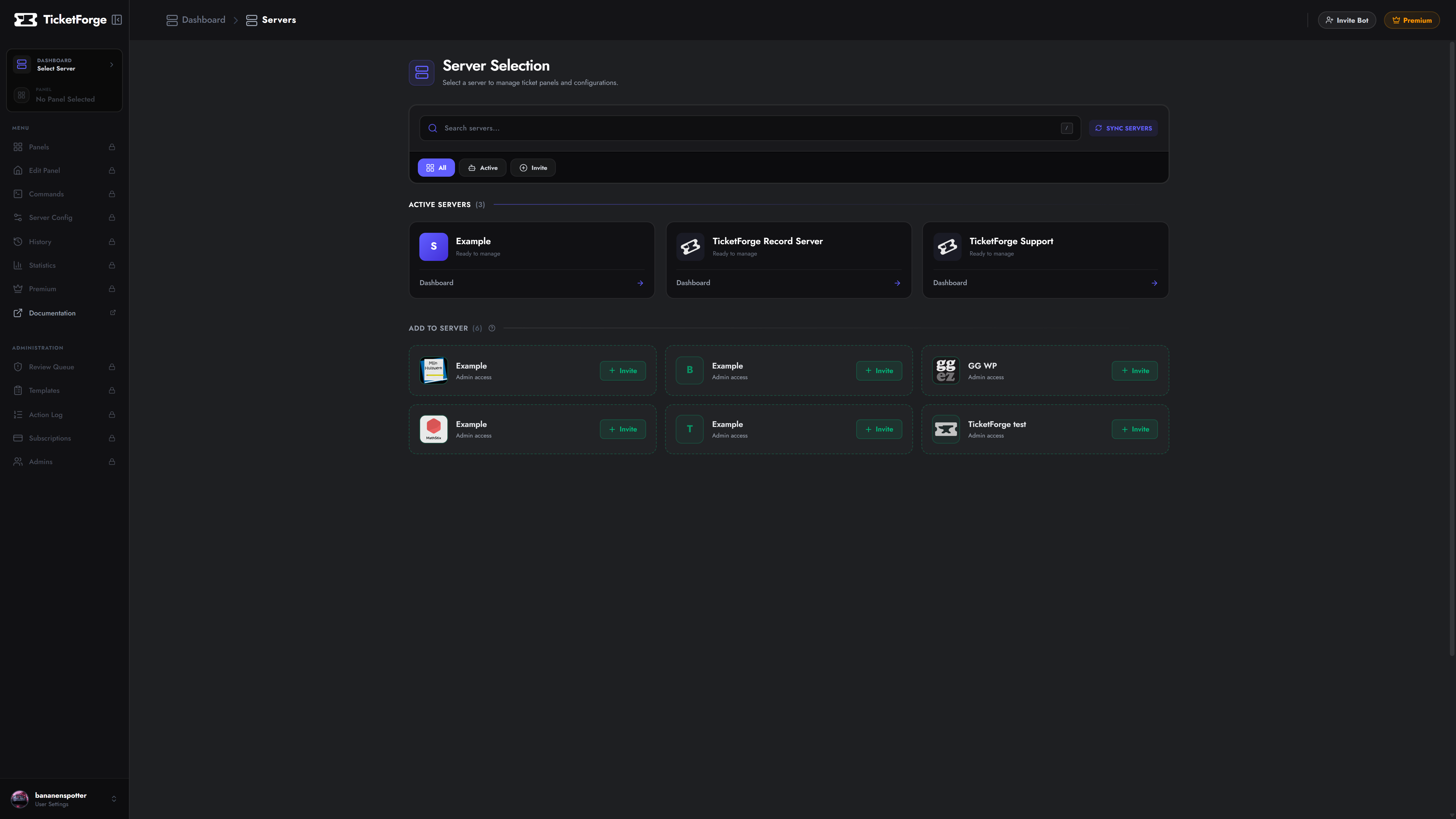
Section titled “2. Server Selection”Once logged in, you will automatically navigate to the server selection page. Select the server where you want to create the application.
You can also navigate to this page by clicking on your profile and then “Servers”.
- Click on your Profile Picture in the top right corner to open the menu.
- Select Dashboard from the dropdown menu.
3. Creating the Application
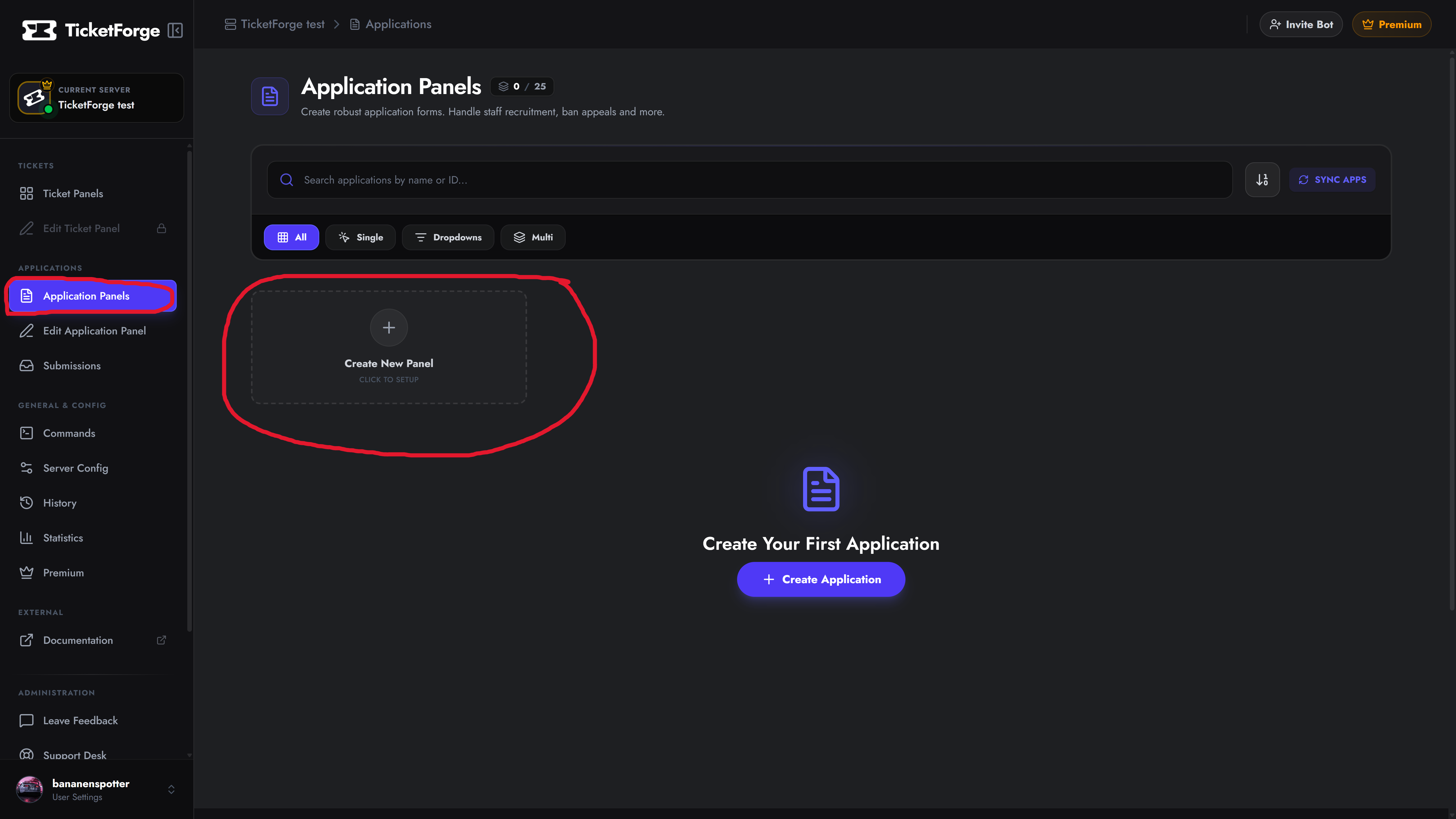
Section titled “3. Creating the Application”After selecting a server, navigate to the Applications tab in the sidebar and click the Create Application card.
Step A: Selection Strategy
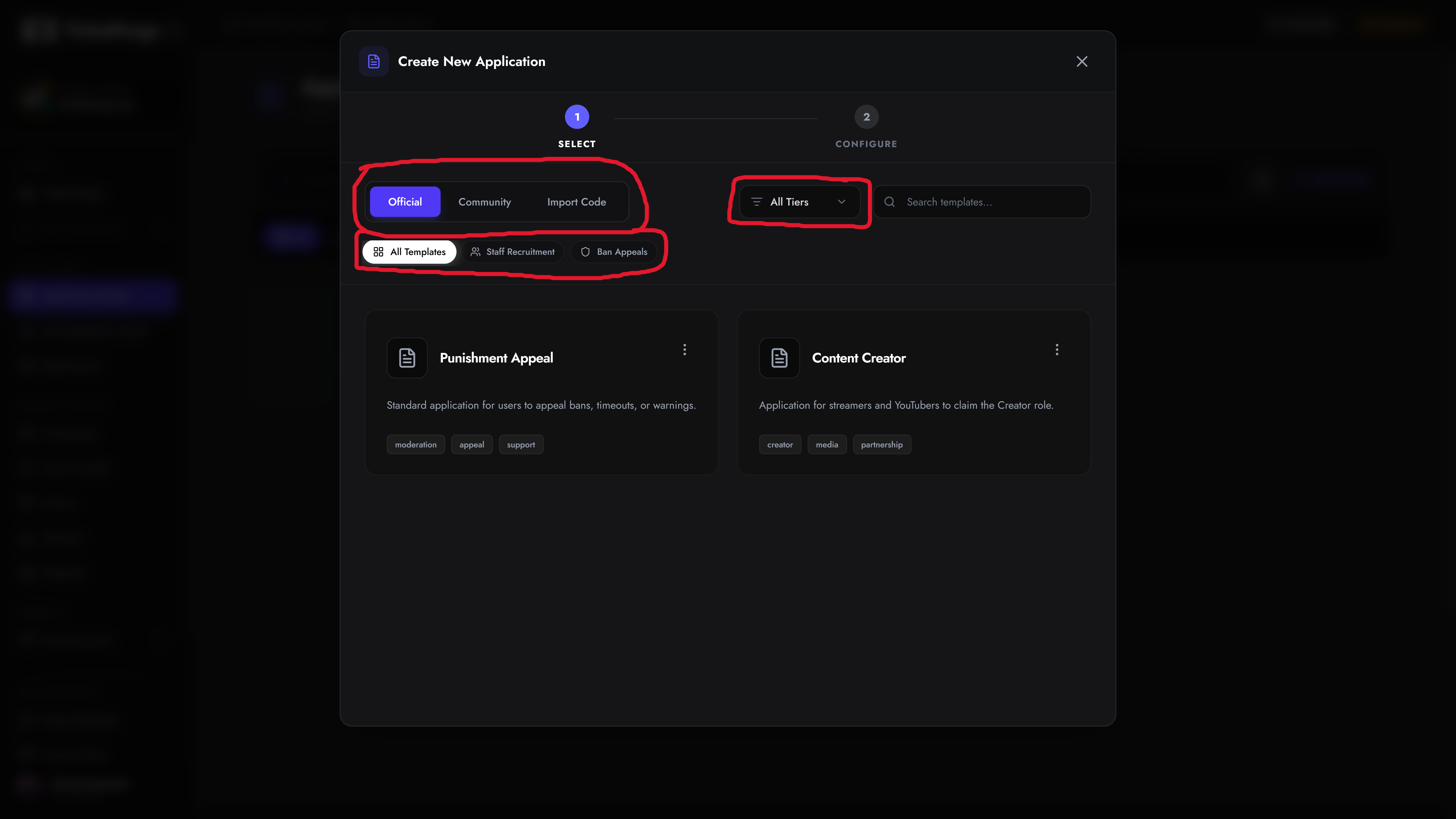
Section titled “Step A: Selection Strategy”You will be presented with three ways to start your configuration:
- Official Templates: Pre-configured templates designed by our team for common use cases (e.g., “Staff Recruitment”).
- Community Templates: User-generated templates shared by other server owners.
- Import from Code: If you have a share code (format:
XXXX-XXXX-XXXX), paste it here to clone an exact configuration.
Previewing Templates
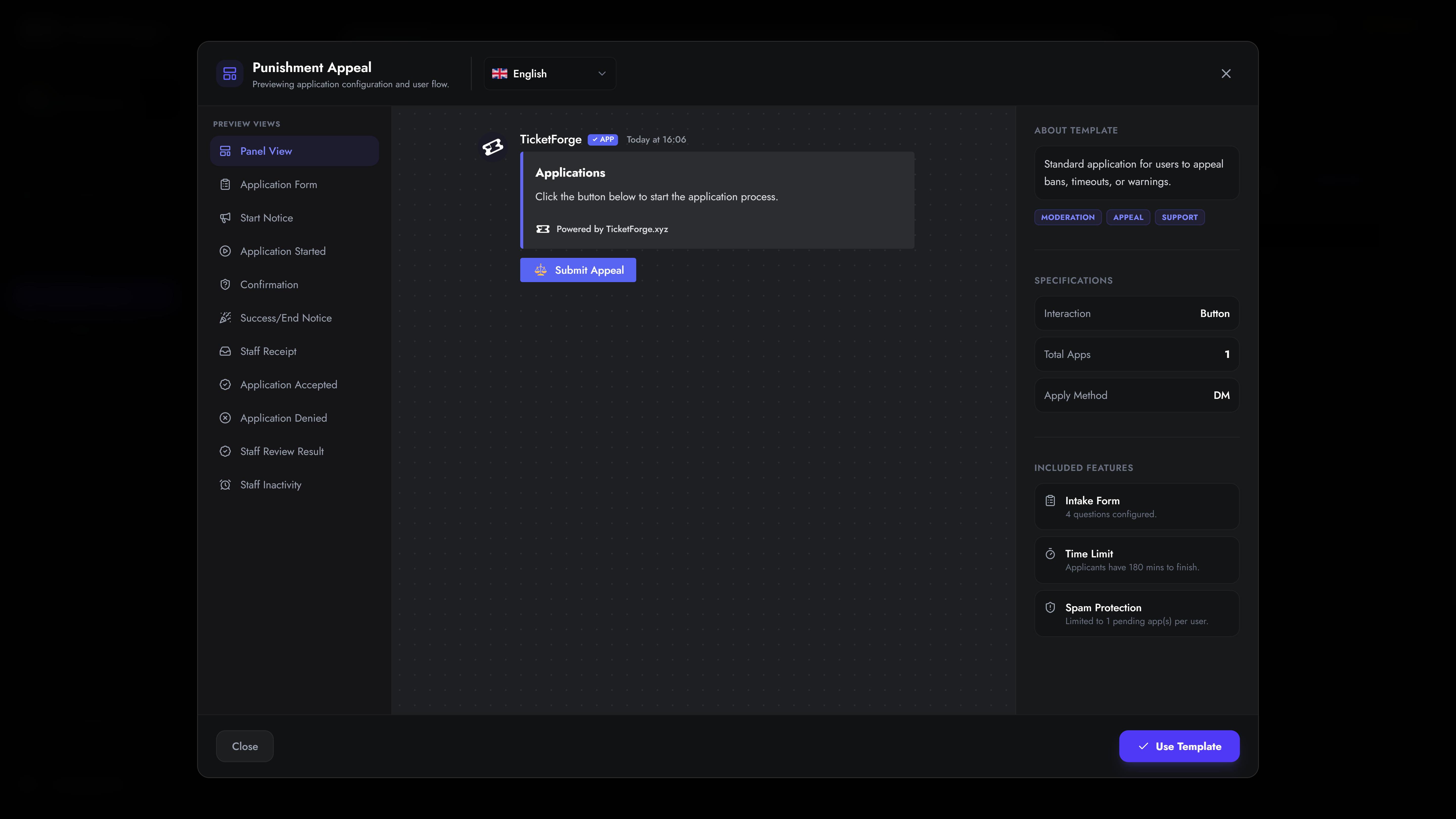
Section titled “Previewing Templates”Before making a choice, you can click on any template card to open a detailed Interactive Preview. This allows you to view the exact questions, the Discord embed message, and the user flow before committing to it.
Step B: Configuration
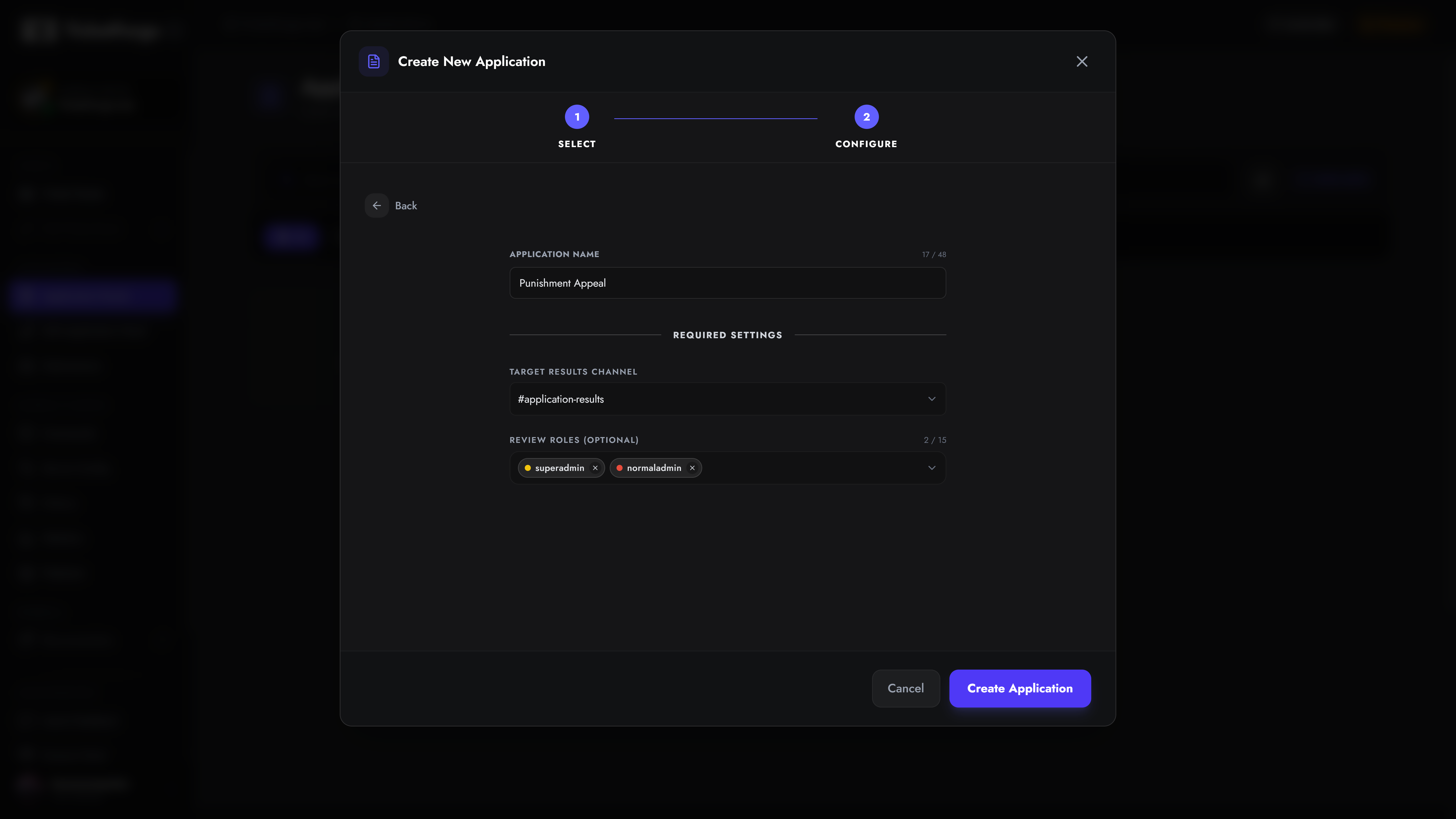
Section titled “Step B: Configuration”Once you click Use Template, you must configure the core identity of the application.
You only need to define three essential settings:
- Application Name: The title of the form (e.g., “Moderator Application”).
- Target Results Channel: The private Discord channel where completed application answers will be posted for your staff to read. (Required)
- Review Roles (Optional): The Discord roles (e.g.,
@Head Mod) that are allowed to click the “Accept” or “Deny” buttons on the submitted applications.
Step C: Creation
Section titled “Step C: Creation”Click Create Application. You will be instantly redirected to the Application Editor where you can finalize your questions, adjust automation rules, and send the form to your Discord server!