Interaction Styles (Layouts)
TicketForge gives you total control over how users start your applications. Instead of cluttering your server with dozens of different buttons across multiple channels, you can combine applications into sleek, unified menus.
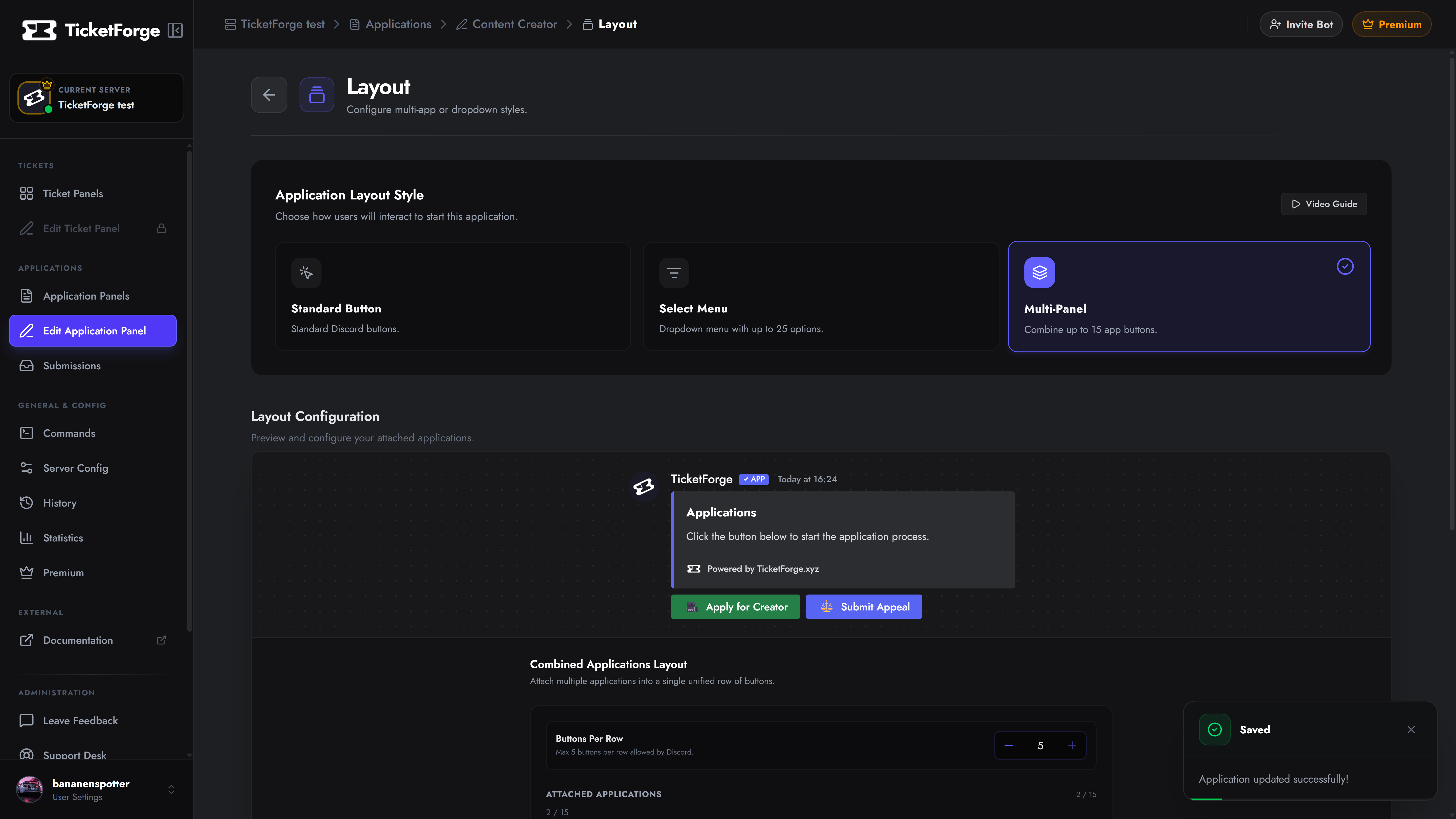
Navigate to Edit Application > Layout to choose and configure your interaction style.
1. Standard Button
Section titled “1. Standard Button”The default layout. A single button attached to an embed message that triggers one specific application.
- Best for: Dedicated channels (e.g., a
#staff-applicationschannel that only serves one purpose). - Customization: You can change the button’s text, color, and emoji from the Buttons tab.
2. Select Menu (Dropdown)
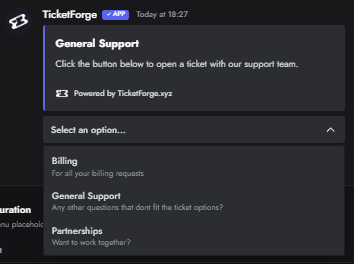
Section titled “2. Select Menu (Dropdown)”Combines multiple applications into a clean dropdown menu. When a user selects an option, the assigned application instantly opens.
- Capacity: Up to 5 options (Free) or 25 options (Premium).
- Best for: Hub channels where users need to choose from many different types of forms (e.g., “Report Player”, “Report Bug”, “Ban Appeal”).
Configuration
Section titled “Configuration”- Menu Placeholder: The grey text visible before a user clicks the menu (e.g., “Choose an application…”).
- Add Options: Click Add New Option.
- Label & Description: Define what the user sees in the list.
- Trigger Application: Select which existing application opens when this option is clicked.
3. Multi-Panel (Button Grid)
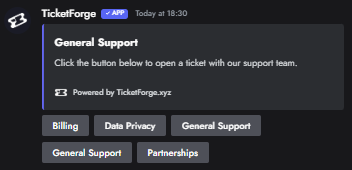
Section titled “3. Multi-Panel (Button Grid)”Attaches multiple applications as individual buttons stacked under a single embed message.
- Capacity: Up to 5 buttons (Free) or 15 buttons (Premium).
- Best for: Small to medium hubs where you want all options immediately visible without requiring the user to click a dropdown first (e.g., “Apply for Mod” and “Apply for Builder” side-by-side).
Configuration
Section titled “Configuration”- Attached Applications: Select which applications to include from the multi-select dropdown.
- Buttons Per Row: Control the grid layout. Discord allows a maximum of 5 buttons per row. If you attach 6 applications and set “Buttons Per Row” to 3, you will get a 3x2 grid.