Roles & Permissions
TicketForge divides permissions into two main categories: Dashboard Access and Ticket Usage.
Dashboard Access
By default, only the Server Owner and users with the Administrator permission in Discord can access the web dashboard.
To grant access to other staff (e.g., "Head Moderator") without giving them full Administrator power:
- Go to Server Config in the dashboard.
- Find Dashboard Access.
- Select the roles you want to authorize.

Access Level
Roles added here will have full access to edit Panels, Messages, and Settings for this specific server. They cannot access Billing or Subscription settings.
Interaction Blacklist
If you have problematic users or roles that abuse the ticket system, you can blacklist them globally.
- Go to Server Config.
- Find Interaction Blacklist.
- Select the roles.

Effect: Users with these roles cannot click any button, use any dropdown, or execute any slash command associated with the bot.
Bot Identity
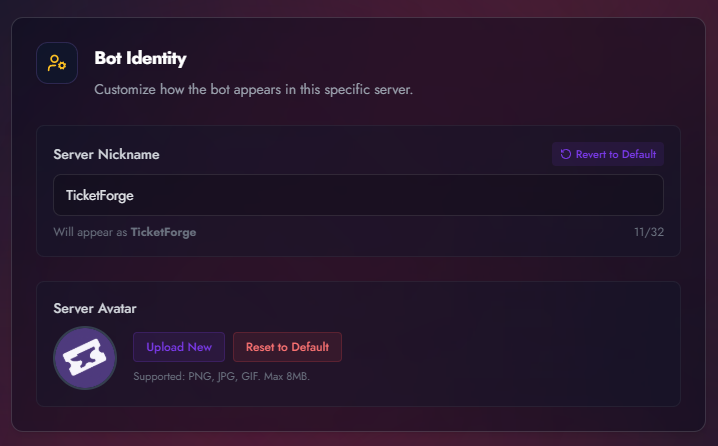
You can customize how TicketForge appears specifically in your server, allowing it to match your server's theme or branding.
Premium Feature
Changing the Bot Identity is a Premium feature.
- Go to Server Config.
- Find the Bot Identity card.
Server Nickname
You can set a specific nickname for the bot in your server. This will change how the bot's name appears in the member list and in chat messages. Leaving this field blank will revert the bot to its default username.
Server Avatar
You can upload a custom image (PNG, JPG, or GIF) to act as the bot's profile picture only inside your server. If you reset this, the bot will revert to its global Application Icon.
Server Language
You can change the language the bot uses for default system messages (e.g., errors, time formatting).

Hierarchy Warning
For TicketForge to manage roles (e.g., adding/removing "Support" roles during claiming), the TicketForge bot role must be physically higher in the Discord Server Settings > Roles list than the roles it is trying to manage.