Skip to content

Messages & Embeds

TicketForge allows you to customize every single interaction the bot has with your users. From the initial panel to the final transcript DM, you have full control over the text, layout, and appearance.

Message Configuration

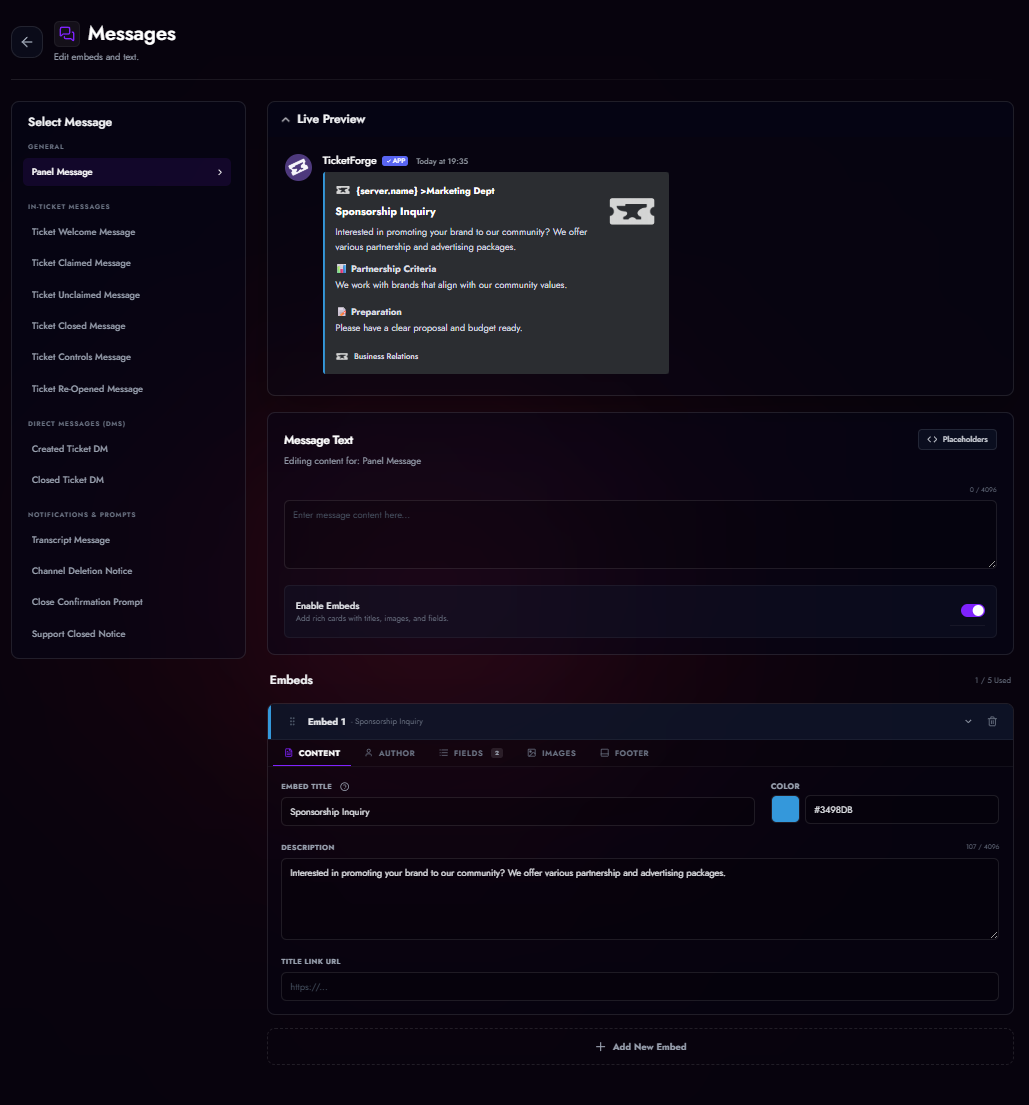
Navigate to the Message Configuration tab in the Panel Editor. You can configure the following automated messages:

Message Editor

The visual editor for customizing automated bot messages.

Panel & Ticket Basics

Message Key Description
Panel Message The permanent message displayed in your channel. Users react or click buttons here to start.
Ticket Welcome The first message sent inside the new ticket. Use this to tag support staff (<@&roleID>) or welcome the user.
Ticket Controls The message attached to the "Close", "Claim", and "Transcript" buttons inside the ticket.

Lifecycle Events

Message Key Description
Ticket Closed Sent into the ticket channel once it enters the "Closed/Archived" state, replacing the controls.
Ticket Re-Opened Sent if a staff member re-opens a closed ticket.
Close Confirmation Displayed when a user clicks "Close" (if Two-Step Close is enabled). Warns them the action is final.
Channel Deletion The final warning message sent 5 seconds before the channel is actually deleted.

Staff Actions

Message Key Description
Ticket Claimed Sent when a staff member claims the ticket. Useful for telling the user who is helping them.
Ticket Unclaimed Sent if a staff member releases a claimed ticket back to the general pool.

Direct Messages (DMs)

Message Key Description
DM: Created Sent to the user's DMs immediately after they open a ticket.
DM: Closed Sent to the user's DMs when the ticket is closed by staff.

Logs & Misc

Message Key Description
Transcript Log The message posted in your Log Channel containing the file download.
Support Closed Displayed if a user tries to open a ticket outside of operating hours (if "Replace Message" schedule mode is on).

Embed Builder

For every message type, you can have a Plain Text message with multiple Rich Embeds .

Embed Result

A rich embed message generated by TicketForge.
  • Author: Sets the small icon and text at the very top.
  • Title: The main bold header. Can be a clickable hyperlink.
  • Description: The main body text. Supports Markdown and variables.
  • Fields: Add up to 25 structured fields. You can set them to Inline to display them side-by-side.
  • Thumbnail: A small image in the top-right corner.
  • Image: A large banner image at the bottom.
  • Footer: Small text and icon at the very bottom. Can display a timestamp.
  • Color: The vertical strip color on the left side.

Variables & Placeholders

You can use dynamic placeholders in almost any text field. These will be replaced with real data when the message is sent.

User Variables

Refers to the specific user mentioned in the context (usually the ticket owner).

Variable Description
{user} Mentions the user (e.g., <@123456789>)
{user_mention} Alias for {user}
{user.name} The user's username
{user_name} Alias for {user.name}
{user.id} The user's unique Discord ID
{user_id} Alias for {user.id}
{user.avatar} URL to the user's avatar image
{user_avatar} Alias for {user.avatar}
{user.tag} The user's 4-digit discriminator (or 0)
{user_tag} Alias for {user.tag}
{user.full} The user's full tag (Username#0000)
{user_full} Alias for {user.full}
{user.nickname} The user's nickname in the specific server
{user_nickname} Alias for {user.nickname}

Author Variables

Refers to the person performing the action (e.g., the Staff member clicking "Close" or "Claim").

Variable Description
{author} Mentions the author (e.g., <@123456789>)
{author.name} The author's username
{author.id} The author's unique Discord ID
{author.avatar} URL to the author's avatar image
{author.icon} Alias for {author.avatar}
{author.tag} The author's 4-digit discriminator
{author.full} The author's full tag (Username#0000)
{author.nickname} The author's nickname in the server

Ticket Context

Variable Description
{ticket} Clickable link/mention of the current ticket channel
{ticket.id} The ID of the channel
{ticket.owner} Mentions the creator of the ticket (Same as {user})
{ticket.user} Alias for {ticket.owner}
{ticket_opener} Alias for {ticket.owner}
{ticket_closer} Mentions the user who clicked Close
{count} The unique ticket number (e.g., "45")

Claiming Variables

Variable Description
{claim.user} Mentions the staff member currently claiming the ticket
{claim.user.name} Claimer's username
{claim.user.id} Claimer's ID
{claim.user.nickname} Claimer's server nickname
{claim.user.icon} URL of claimer's avatar
{claim.user.tag} Claimer's discriminator
{claim.user.full} Claimer's full username

Panel & Server

Variable Description
{panel.name} The name of the panel used (e.g., "Support")
{panel.count} Total number of tickets created in this panel
{panel.ticketLimit} The ticket limit for this specific panel
{server.name} Name of the Discord server
{server_name} Alias for {server.name}
{server.id} The server's ID
{server.members} Total member count
{server_members} Alias for {server.members}
{server.icon} URL of the server icon
{server.banner} URL of the server banner

Channel Variables

Variable Description
{channel_mention} Mentions the current channel
{channel.name} Name of the current channel
{channel_name} Alias for {channel.name}
{channel.id} ID of the current channel

Time & Dates

Variable Description
{time} Current Unix timestamp (numbers)
<t:{time}> Short Date Time: 12 June 2025 14:00
<t:{time}:R> Relative Time: 5 minutes ago
{time.created} Timestamp of when the ticket was opened
{time.deleted} Timestamp of when the ticket was deleted
{time.created.age} Human-readable duration (e.g., "2 days")
{time.deleted.age} Time between ticket creation and deletion

Forms & Special

Variable Description
{empty} Inserts a special invisible character (useful for blank embed fields)
{random} A random number (see modifiers below)
{Role ID} Copy a Role ID (e.g., 987654321) and paste it to ping that role.

Variable Modifiers

You can process variables to format them exactly how you need. Append ?modifier inside the brackets.

Text Formatting

  • {user.name?uppercase} or ?uc -> USERNAME
  • {user.name?lowercase} or ?lc -> username
  • {user.name?maxLength=5} or ?ml=5 -> Usern... (Truncates text)
  • {count?padLeft=3} or ?pl=3 -> 001, 045 (Adds leading zeros)
  • {count?padRight=3} or ?pr=3 -> 100, 500 (Adds trailing zeros)
  • {variable?clean} -> Removes backticks (`) to prevent code block breakage

Logic & Math

  • {variable?fallback=No Value} or ?fb=... -> Displays "No Value" if the variable is empty.
  • {variable?notfallback=Has Value} or ?nfb=... -> Displays "Has Value" if the variable is NOT empty.
  • {random?rmin=1?rmax=100} -> Generates a number between 1 and 100.
  • {time?math=+3600} or ?m=... -> Adds 3600 seconds (1 hour) to the timestamp. Supported: +, -, *, /.

Examples

1. Clean Welcome Message

"Hello {user}, welcome to {server.name}! Support will be with you shortly."

2. Formatted Ticket ID

"Ticket ID: #{count?padLeft=4}" -> Ticket ID: #0042

3. Conditional Form Data

"IGN: {ign?fallback=Not Provided}" -> Displays the user's IGN input from the form, or "Not Provided" if they skipped it.