Skip to content

Claiming System

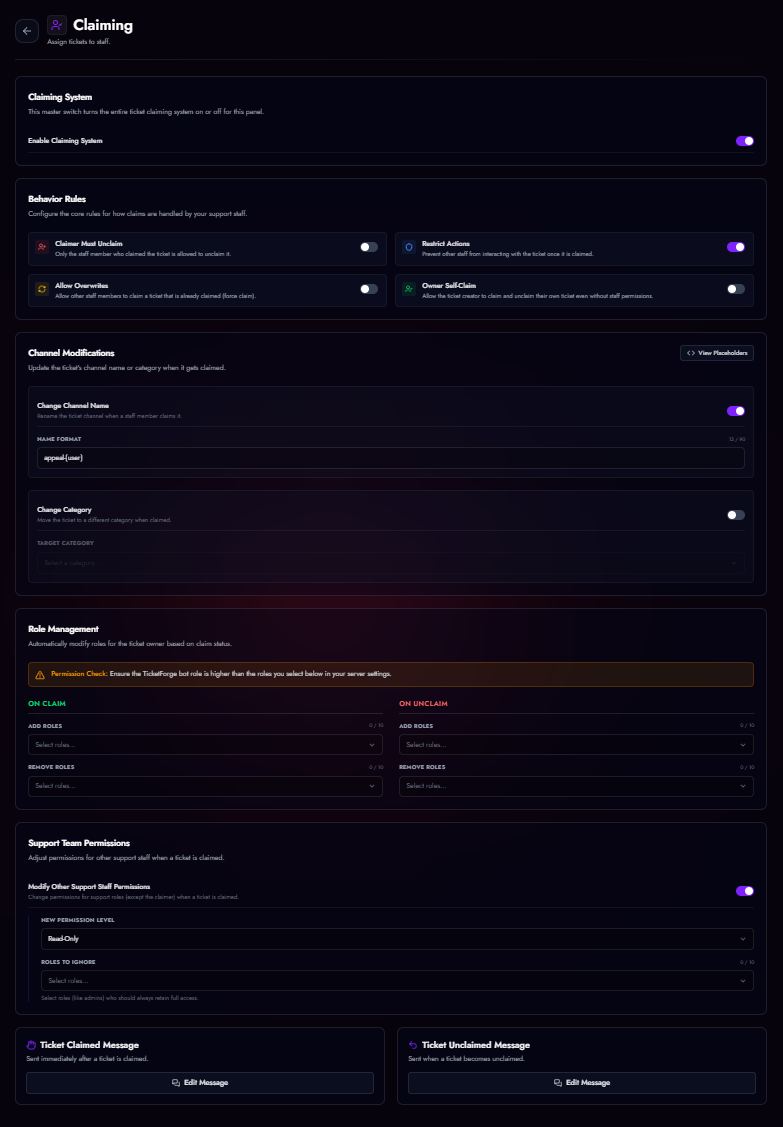
The Claiming System prevents staff collisions by allowing a single moderator to "take ownership" of a ticket. This is essential for large support teams.

Claiming Example

A ticket that has been claimed by a staff member.

Enabling Claiming

Go to the Claiming System tab in the Panel Editor and toggle Enable Claiming System.

Behavior Rules

These rules dictate how strict the claiming process is:

  • Claimer Must Unclaim: Only the specific staff member who claimed the ticket can release it. Prevents other staff from "stealing" active tickets.
  • Restrict Actions: Locks the ticket so only the Claimer (and the ticket owner) can use buttons like "Close" or "Transcript". Other staff are blocked.
  • Allow Overwrites: Allows high-ranking staff (or anyone, depending on permissions) to force-claim a ticket that is already claimed by someone else.
  • Owner Self-Claim: Allows the ticket creator to click the "Claim" button. Useful for "Self-Assign" workflows or roleplay servers.

Visual Changes

When a ticket is claimed, you can automate changes to the channel itself:

  1. Rename Channel: Change the channel name to indicate status.
    • Format: claimed-{count} or helping-{user}.
  2. Change Category: Move the ticket to a dedicated "In Progress" category.
  3. Support Team Permissions:
    • Read-Only: Staff who did not claim the ticket can see messages but cannot type.
    • Hide: Staff who did not claim the ticket lose access to the channel entirely.
    • Ignore Roles: You can select specific roles (e.g., "Admin") to bypass these restrictions.

Role Automation

The bot can add/remove roles from the Staff Member (Claimer) when they interact with a ticket.

  • On Claim: Add a role (e.g., "Busy") or remove a role (e.g., "Available").
  • On Unclaim: Revert the roles to show the staff member is free again.